How to Link Instagram to a Facebook Business Page: 3 Ways to Connect
Written by: Tim Eisenhauer
Last updated:

The easiest way to keep your social media profiles active.
Learn more about Apaya →
How do you link Instagram to a Facebook Business Page?
Three native paths do it, and all three are free. Open the Instagram app, go to your professional account settings, and connect the Facebook Page there. Or open the Facebook Page’s Professional dashboard and use Linked accounts. Or connect both inside Meta Business Suite through Business Settings. Two things have to be true before any of them work: your Instagram must be a professional account (business or creator), and you need an admin or Facebook-access role on the Page. Get those right and the connection takes under two minutes.
The short version
Linking the accounts is a one-time setup. Apaya connects your Facebook Page and Instagram professional account through Meta's official login, then writes, designs, schedules, and publishes posts to both from a single brief, with your approval. From $55/mo. The native steps come first.
Two prerequisites everyone trips on
Skip this section and you will spend twenty minutes hunting for a button that was never going to appear. Both prerequisites are quick to check.
-
Your Instagram has to be a professional account. Personal accounts do not connect to a business Page. In the Instagram app, go to your profile, open Settings and privacy, find the “For professionals” area, and switch to a professional account (business or creator). It is free, reversible, and keeps your followers and posts.
-
You need admin access on the Facebook Page. Connecting an Instagram account to a business Page requires an admin role, or a Facebook-access admin assignment under the newer Page setup. If you can post to the Page but the connect option is greyed out, this is usually why. Here is how to add an admin or the right access to your Facebook Page. And if you do not have a Page yet, start by learning how to create a Facebook business Page, then come back here.
Why link Instagram and your Facebook Page
Linking is not busywork Meta invented. The connection turns on a set of business features that stay locked otherwise:
-
Instagram ads from the Page and Ads Manager. You can boost Instagram posts and run ads tied to the Page without a separate setup every time.
-
One unified inbox. Meta Business Suite pulls Facebook and Instagram messages, comments, and mentions into a single view, so you are not bouncing between two apps.
-
Instagram Shopping from your Page catalog. Product tags on Instagram pull from the catalog attached to the Page.
-
Cross-posting. Once linked, you can publish a feed post or reel to both platforms from one place instead of copying it by hand.
-
Combined insights. Business Suite shows Facebook and Instagram performance together, so you read one report instead of two.
Method 1: Link from the Instagram app
This is the fastest path if you live on your phone. Instagram moves its labels around, so the exact wording shifts, but the route is stable.
- Open the Instagram app and go to your profile.
- Tap the menu, then Settings and privacy.
- Scroll to the “For professionals” section. If you do not see it, your account is still personal, so switch it to professional first.
- Open Business tools and controls, then the Facebook Page option.
- Tap Connect, choose the Page you manage, and confirm.
If your Facebook Page does not appear in the list, you are either signed into a different Facebook account inside the app or you do not have admin access on that Page. Both are fixable in a minute.
Method 2: Link from your Facebook Page
If you run the business from a desktop, do it from the Page side.
- Go to your Facebook Page and open the Professional dashboard.
- In the left menu, find Linked accounts.
- Select Instagram, then Connect account.
- Log in with your Instagram professional account when the window pops up.
- Approve the connection and confirm.
The Professional dashboard is also where you manage the link later, including disconnecting if you ever move the Instagram account to a different Page.
Method 3: Link in Meta Business Suite
This is the path for anyone managing the accounts through a business portfolio, which is how agencies and larger teams keep client assets separate from personal profiles.
- Open Meta Business Suite at business.facebook.com and pick the right business.
- Go to Settings, then Business Settings.
- Under Accounts, choose Instagram accounts.
- Click Add or Connect, then log in with the Instagram professional account.
- Once it is added, assign your Facebook Page to that Instagram account inside the portfolio.
The extra step here, assigning the Page to the account, is the one people miss. Adding the Instagram account to the portfolio is not the same as linking it to a specific Page. Do both.
Troubleshooting the connection
Meta’s own docs cause most of these, so here are the four that come up again and again.
-
The Connect button is greyed out or missing. Almost always one of the two prerequisites. Your Instagram is still personal, or you lack an admin role on the Page. Switch the account to professional, confirm your Page access, and refresh.
-
Personal Accounts Center versus the business portfolio. Accounts Center links your personal Facebook profile and personal Instagram for cross-posting. That is a different system from connecting a professional Instagram account to a business Page. For a business, use Method 2 or Method 3, not the personal Accounts Center. This mix-up is the single biggest source of confusion.
-
“Already linked to another Page.” An Instagram professional account connects to one Facebook Page at a time. Go to the old Page’s Linked accounts, disconnect the Instagram account there, then connect it to the new Page. Meta will not let you double-link.
-
Business Suite does not show the Instagram account. The account is not in the same portfolio, it is still personal, or you are looking at the wrong portfolio. Add it under Business Settings, Instagram accounts, confirm the portfolio at the top left is the right one, and make sure your user has access to that account.
Get past those four and the connection sticks. From there, the next thing most people want is to post from Facebook to Instagram at the same time, which the link you just made is what enables.
Connecting Instagram and Facebook in Apaya
The native link is a one-time setup that hands you Business Suite’s duplicate-post workflow. The same one-time connection in a tool like Apaya does more with it. Here is the same job, done once, then reused for every post after.
You connect Facebook and Instagram a single time through Meta’s official login. You log in, pick the Page and its Instagram professional account, and approve the permissions. Connecting the Page requires that you hold an admin or Facebook-access role on it, the same access Meta’s own tools ask for, because Apaya connects through Meta, not around it.
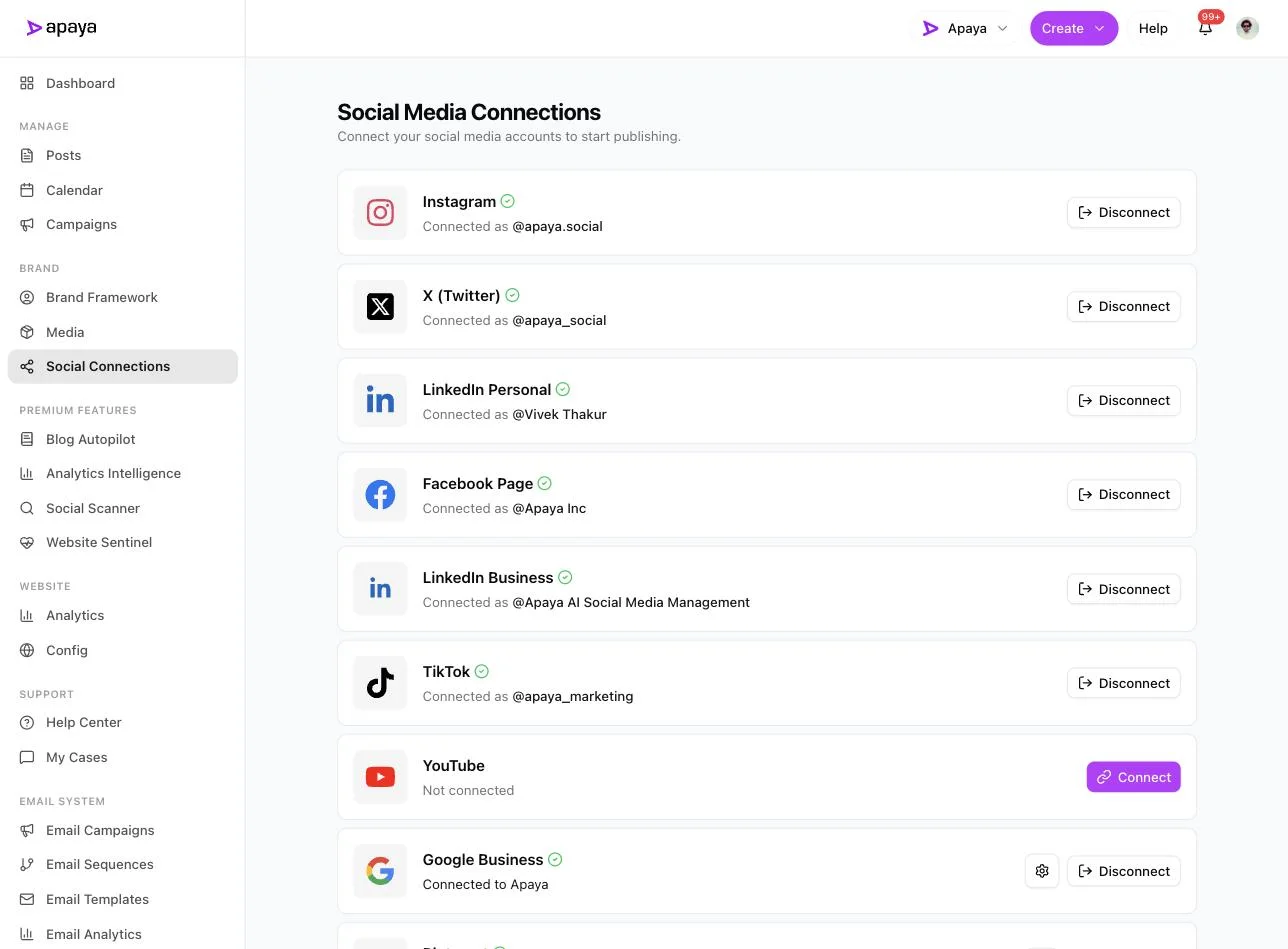
The connections page shows Instagram and the Facebook Page connected with green checks, next to X, LinkedIn, TikTok, and Google Business. One login per platform, done once. To be clear about what is what: these are Apaya’s own account connections, and they are a different system from the admin roles you set on the Facebook Page itself.
After that, the connection stops being a setup chore and becomes the thing every post runs through. You write one plain-language brief and pick which platforms it goes to. Both Instagram and Facebook are in the picker, along with the rest.
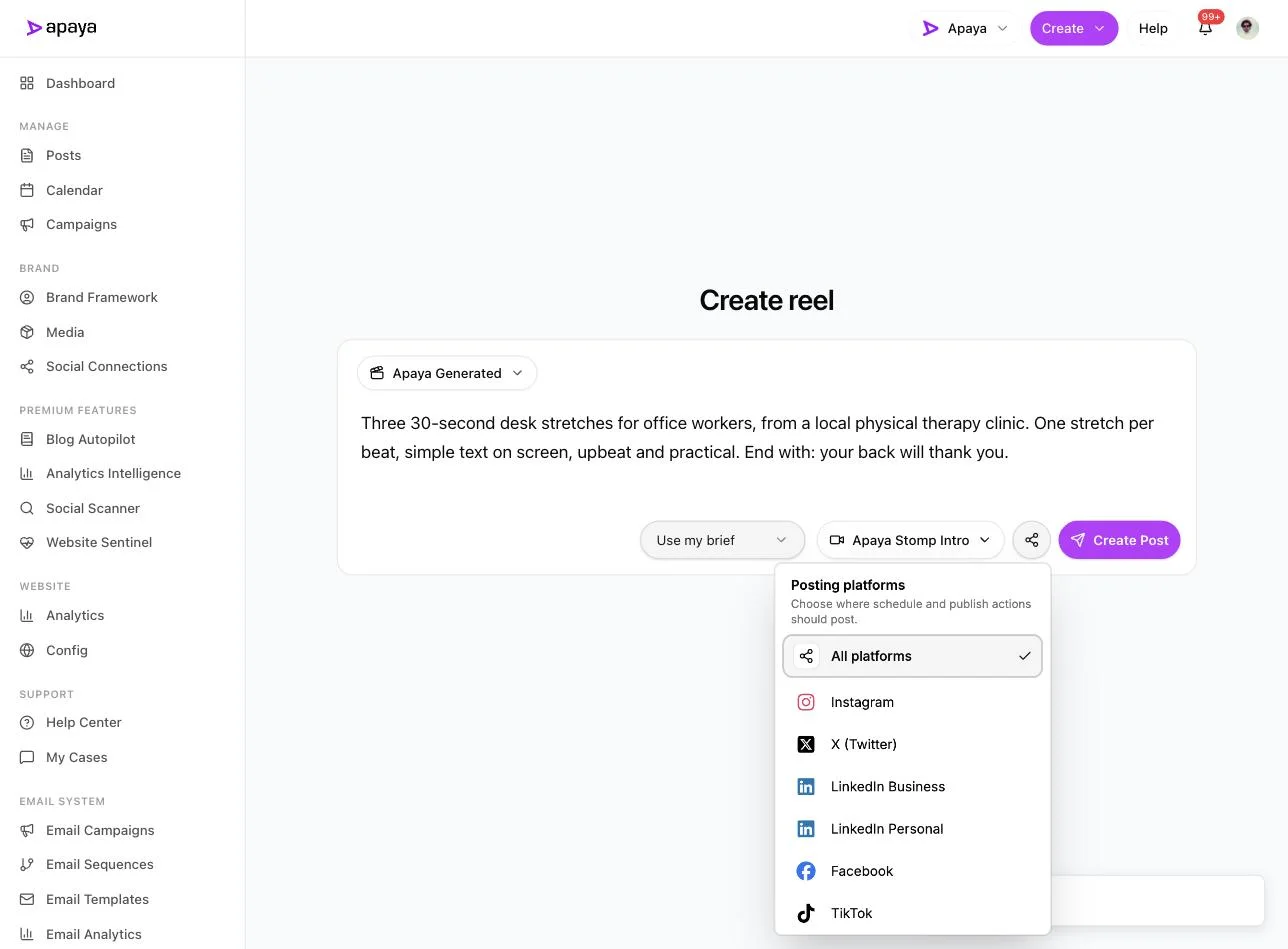
This is the reel composer with the platform picker open. The same picker appears whether you are making standard posts, carousels, or reels, so one brief can target Instagram and Facebook together instead of you posting to each by hand. Each platform gets its own adapted version rather than the same caption pasted twice.
Then the posts come back finished. Not a queue to fill. Written captions and designed graphics, ready to review.
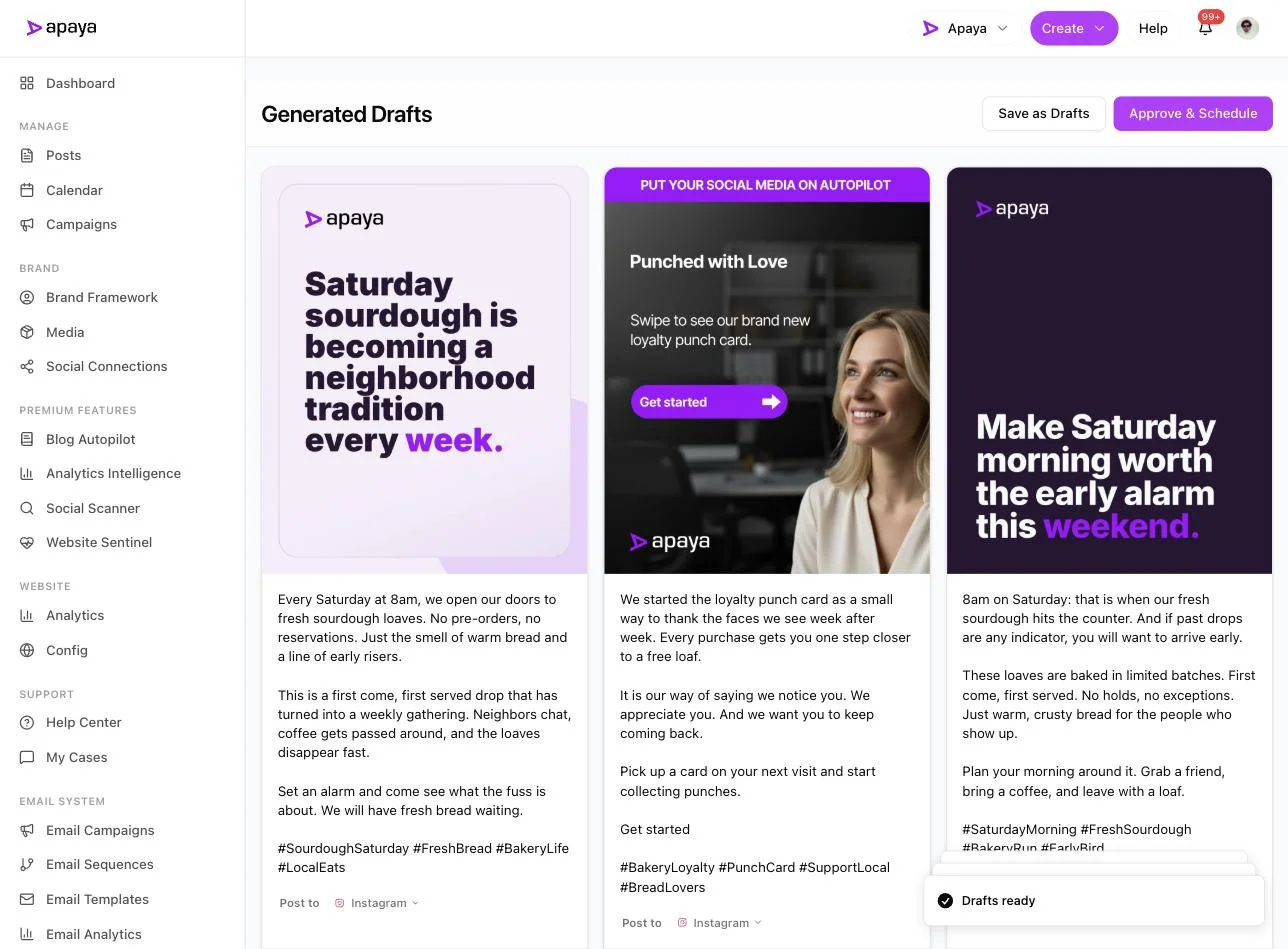
This run returned three Instagram posts, each with its own designed template and caption, plus Save as Drafts and Approve and Schedule buttons. Nothing publishes until you approve it.
Where the time savings come from
This is the difference worth understanding before you pick a tool. Schedulers like Hootsuite and Buffer organize content you still have to make. They give you a calendar, a queue, and team features, which is useful, but the queue is empty until you fill it. Apaya does what those schedulers do and adds a content production layer on top: it writes and designs the posts, carousels, and reels from one brief, then schedules and publishes them. The scheduler organizes the work. Apaya also does the work.
That plays out three ways once Instagram and your Page are linked:
-
Less weekly production time. One brief returns adapted posts for both platforms, so the making, not just the scheduling, is off your plate. The cross-posting tool handles the per-platform adaptation instead of duplicating one caption.
-
Consistency you can keep. The reason pages go quiet is that the content ran out, not the calendar. When the posts get produced for you, the every-week cadence survives a busy month. You can schedule Instagram posts and Facebook posts at set times and let them run.
-
One connection covers more than Meta. The same login flow that links Instagram and Facebook also connects LinkedIn, X, and TikTok, so linking pays off across every channel, not only the Meta pair.
Linking the accounts is the same one-time step either way. The question is what the link does for you after you make it: enable manual duplicate posting, or feed a system that produces the week for you.
Common questions about linking Instagram and Facebook
Do I need a business account to link Instagram to a Facebook Page?
Yes. The Instagram account has to be a professional account, either business or creator, before it will connect to a Facebook business Page. A personal Instagram can link to a personal Facebook profile through Accounts Center, but the business Page connection needs the professional switch first. It is free and takes about a minute in Instagram’s settings.
Why is the Connect button greyed out or missing?
Three usual causes. Your Instagram is still a personal account, so switch it to professional first. You do not hold an admin or Facebook-access role on the Page, so you can view it but not connect anything. Or you are signed into the wrong Facebook profile in that browser. Fix the one that applies and the button comes back.
Can one Instagram account be linked to two Facebook Pages?
No. An Instagram professional account connects to one Facebook Page at a time. To move it, disconnect it from the current Page first, then connect it to the new one. Trying to connect a second Page returns an already-linked error, which is Meta telling you to break the old link first.
Do I have to be an admin to connect the accounts?
For a business Page, yes. You need an admin role or a Facebook-access admin assignment on the Page to connect an Instagram account, and the same level of access is required to connect the Page to any third-party tool. A Page editor role or a personal Accounts Center link is not enough to make the business connection.
What is the difference between Accounts Center and connecting to a Page?
Accounts Center links your personal profiles for cross-posting and shared logins. Connecting a professional Instagram account to a Facebook business Page is a separate business link that turns on ads, the shared inbox, shopping, and combined insights. For a business, use the Page or Business Suite path, not personal Accounts Center. Mixing the two is the most common reason people get stuck.
Related guides
- How to post from Facebook to Instagram at the same time: the next step once the accounts are linked, native methods and the fixes for when sharing fails.
- How to schedule Instagram posts: timing, tools, and the free versus paid options for a linked account.
- How to add an admin to your Facebook Page: the access you need before the connect button will work.
- How to create a Facebook business Page: start here if you do not have a Page to link yet.
- Apaya cross-posting tool: one brief into adapted posts for both platforms, plus LinkedIn, X, and TikTok.
Sources
- Meta Business Help Center connection documentation, verified in-product July 2026
- Apaya product screenshots captured live from my.apaya.com, July 2026
The easiest way to keep your social media profiles active.
Apaya writes the posts, designs the graphics, and publishes them for you. You approve.
See how Apaya worksThe easiest way to keep your social media profiles active.
Apaya writes your posts, designs your graphics, and publishes everywhere — automatically.