How to Schedule Instagram Posts: Every Method Compared
Written by: Tim Eisenhauer
Last updated:
The easiest way to keep your social media profiles active.
Learn more about Apaya →
Can you schedule Instagram posts?
Yes, four ways: inside the Instagram app itself (professional accounts, up to 75 days ahead), free on desktop through Meta Business Suite, through third-party scheduling tools, or through an AI flow that creates the posts and schedules them in the same sitting. This guide walks through all four, including where Instagram hides the native button this year, and ends with the method where “scheduling” stops being a separate chore at all, shown with real screenshots instead of marketing shots.
One thing before the methods. Scheduling is the easy half of the job. Every method below assumes you have posts to schedule, and for most businesses the actual bottleneck is what to post and the hours it takes to produce it. If you are still setting up the posting basics on a business account, start with how to post on Instagram for business and come back for the scheduling layer. Keep that in mind as you compare, because the methods differ mostly in how much of that production half they take off your plate.
The one-flow version
Method 4 below is Apaya creating and scheduling six Instagram posts from one written brief, shown with real screenshots. Creation, scheduling, publishing, and analytics in one place, from $55/mo.
Method 1: Schedule inside the Instagram app
Instagram added native scheduling for professional accounts, and then buried it. The path: create your post as normal (photo, caption, the works), and on the final share screen open Advanced settings, then toggle Schedule this post and pick your date and time, up to 75 days out. Tap back, and Share becomes Schedule.
The limits are real: professional accounts only (the free switch is in your account settings), one account at a time, phone only, and no calendar view of what’s coming, so past two or three scheduled posts you’re managing your feed from memory. And because Instagram reshuffles this menu regularly, “where did the schedule button go” is a top search in its own right. If it vanished for you, it moved; check Advanced settings first.
Method 2: Meta Business Suite, free on desktop
Meta Business Suite (business.facebook.com) is the free tool most owners don’t know they already have. Its Planner shows a real calendar, schedules Instagram and Facebook together from your desk, supports stories, and lets you write captions with an actual keyboard. For a single business that just needs posts out the door on both Meta platforms, this is the straight free answer, and it’s what we recommend to businesses that aren’t ready for anything paid.
Its ceiling: Meta platforms only (your LinkedIn and X still need their own plan), the interface is sluggish on heavy weeks, and it does nothing about creating the content. You’re still writing every caption and designing every graphic somewhere else, then bringing it here to be timed.
Method 3: Third-party scheduling tools
The Buffer-and-Later category: connect your accounts, load a queue, get a calendar, publish everywhere. These tools earn their subscription when you’re juggling several platforms and want one calendar with team features; the full comparison of that category covers who fits which tool.
The limit is the same one it’s been for fifteen years: a scheduler schedules. The queue is an empty box on a timeline, and it’s still hungry every week. Tools in this category increasingly bolt on AI caption assistants, which help you write faster, but the ideas, the graphics, and the assembly remain your job. If your feed keeps going dark, the problem was never the timing tool. That gap is exactly what an Instagram post scheduler that writes the posts closes.
Method 4: Create and schedule six posts in one flow
This is how it works in Apaya, where scheduling is the last click of creating rather than a separate chore. What follows is the real flow, screenshotted from our own account, not mockups.
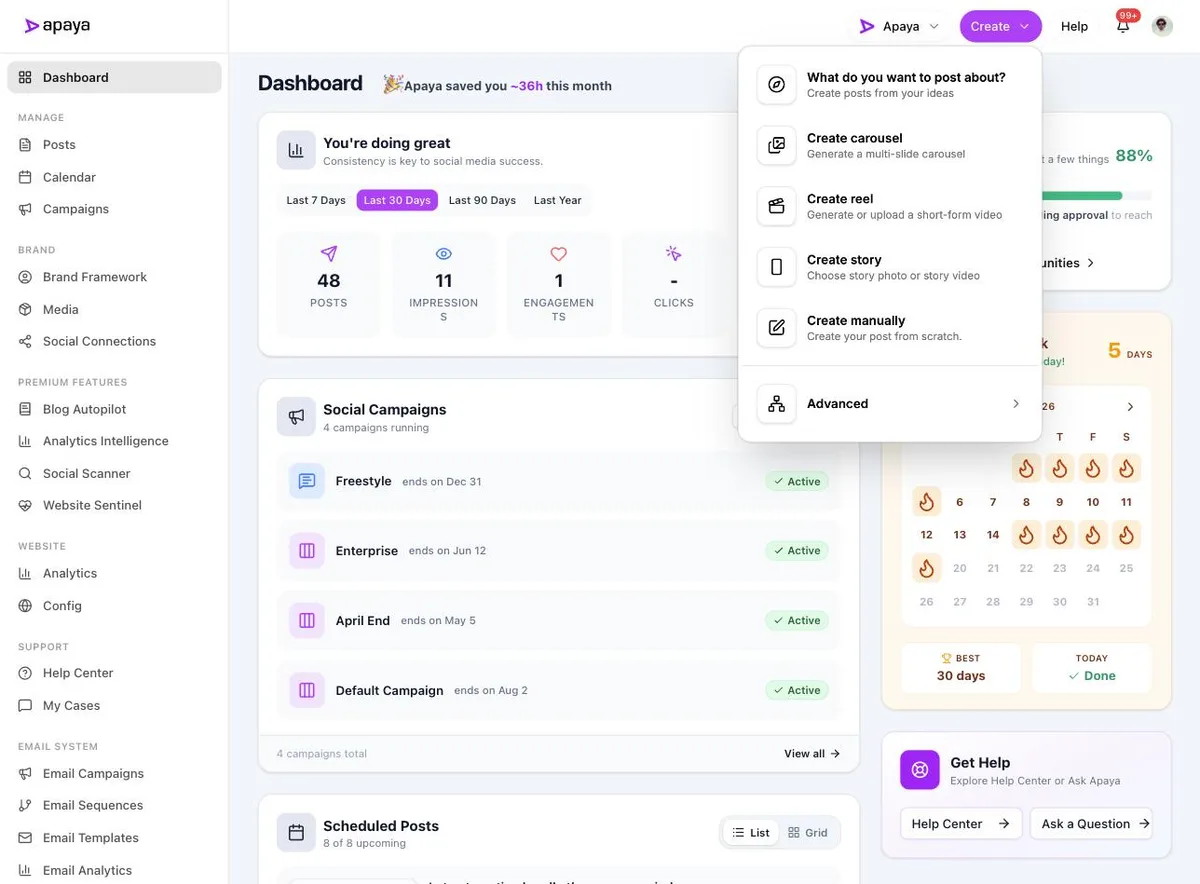
1. From the dashboard, click Create. It’s in the top navigation everywhere in the app.
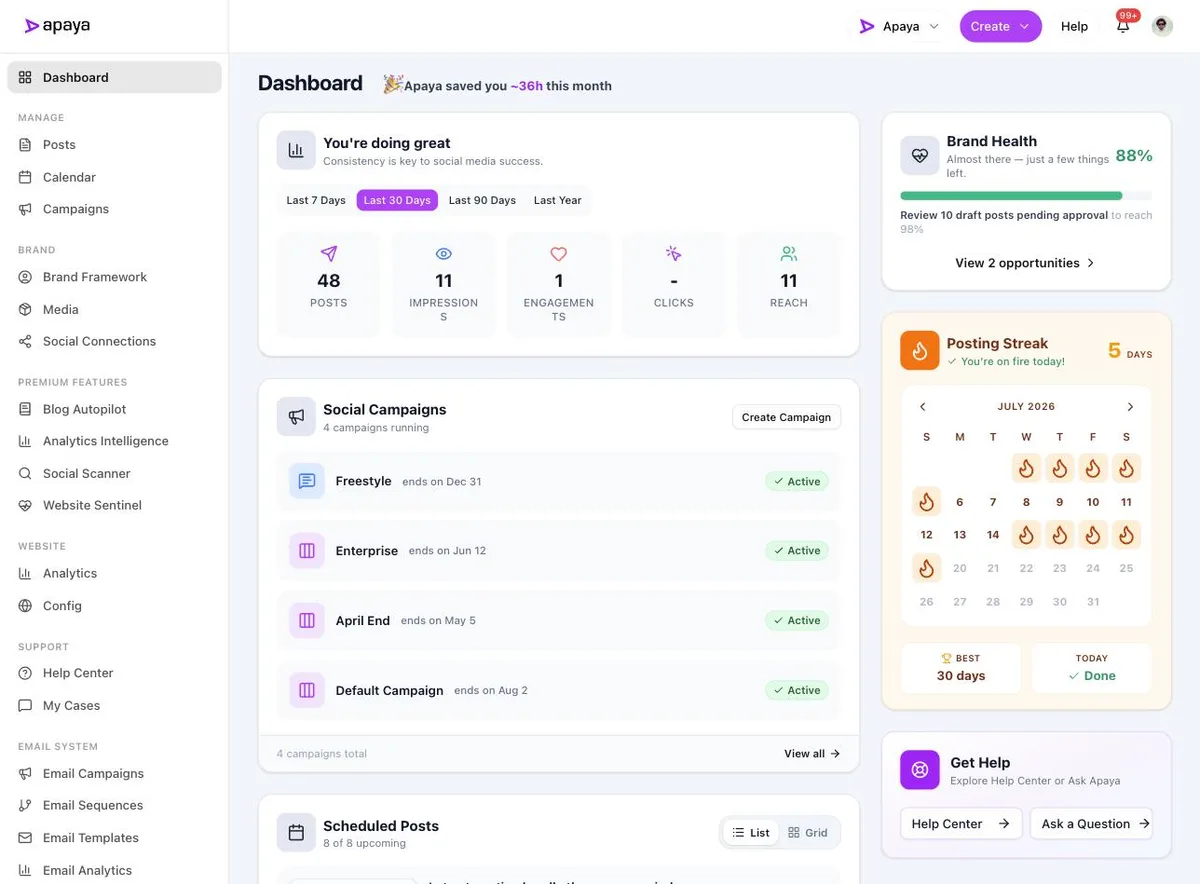
2. Choose “What do you want to post about?” The menu also has carousels, reels, stories, and manual creation; this option is the fastest brief-to-posts path.
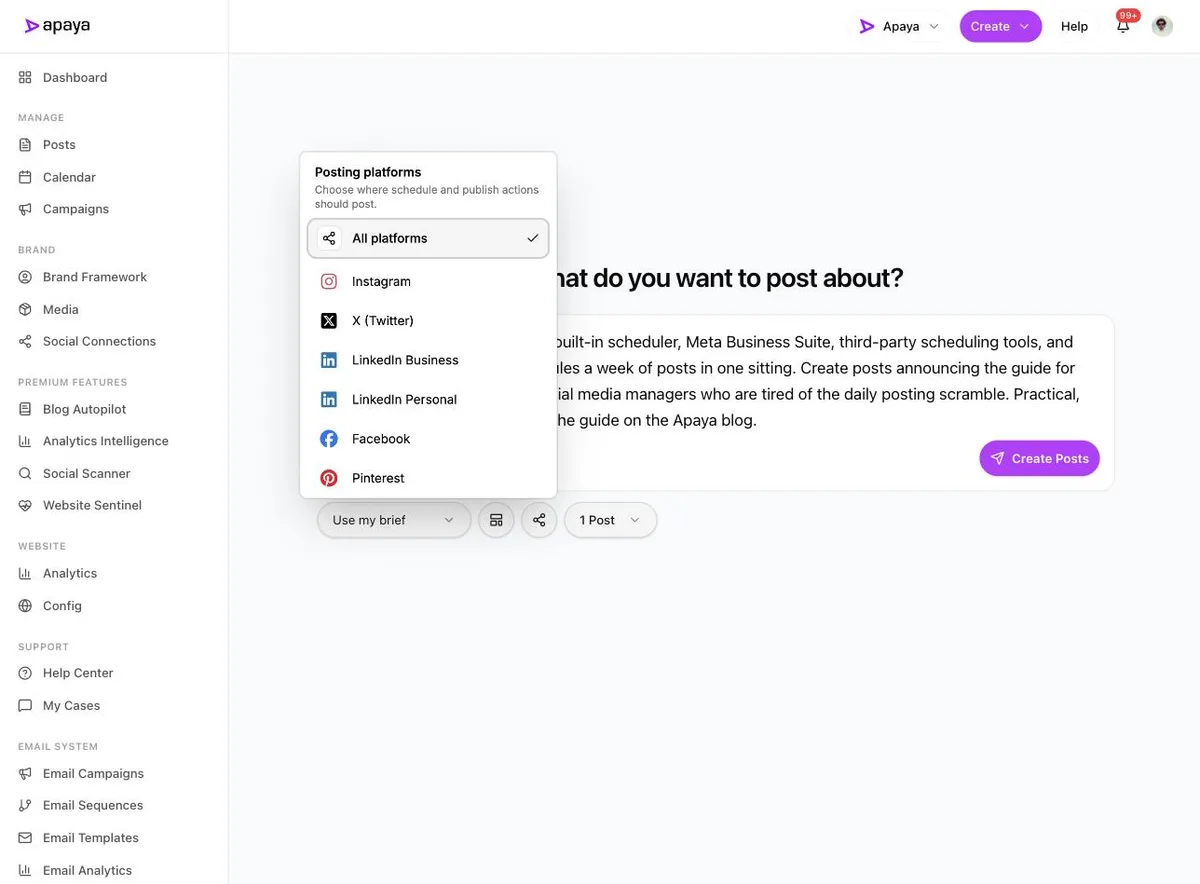
3. Tell it what you want to post about. The big text box takes a campaign brief, a topic, your website content, or a pasted URL, written the way you’d explain it to a person. Around the box you can attach images (upload, media library, or URL), open the template panel that turns each post’s content into a branded graphic, and set the rest of the run.
4. Pick Instagram as the destination. The share icon opens the platform picker: Instagram, Facebook, LinkedIn, X, Pinterest, or all at once. For this walkthrough, just Instagram.
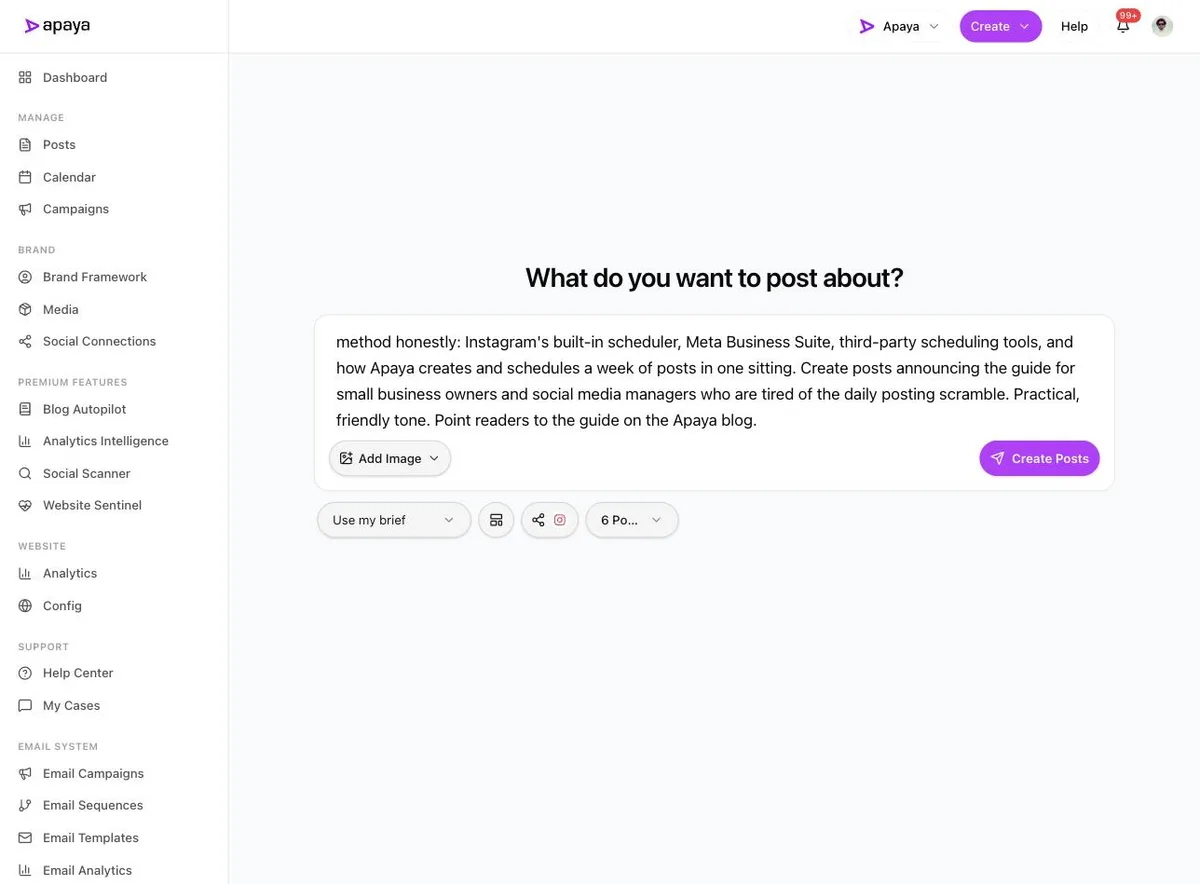
5. Choose how many posts, one to six, and click Create Posts. Here’s the configured screen: brief written, Instagram selected, six posts requested.
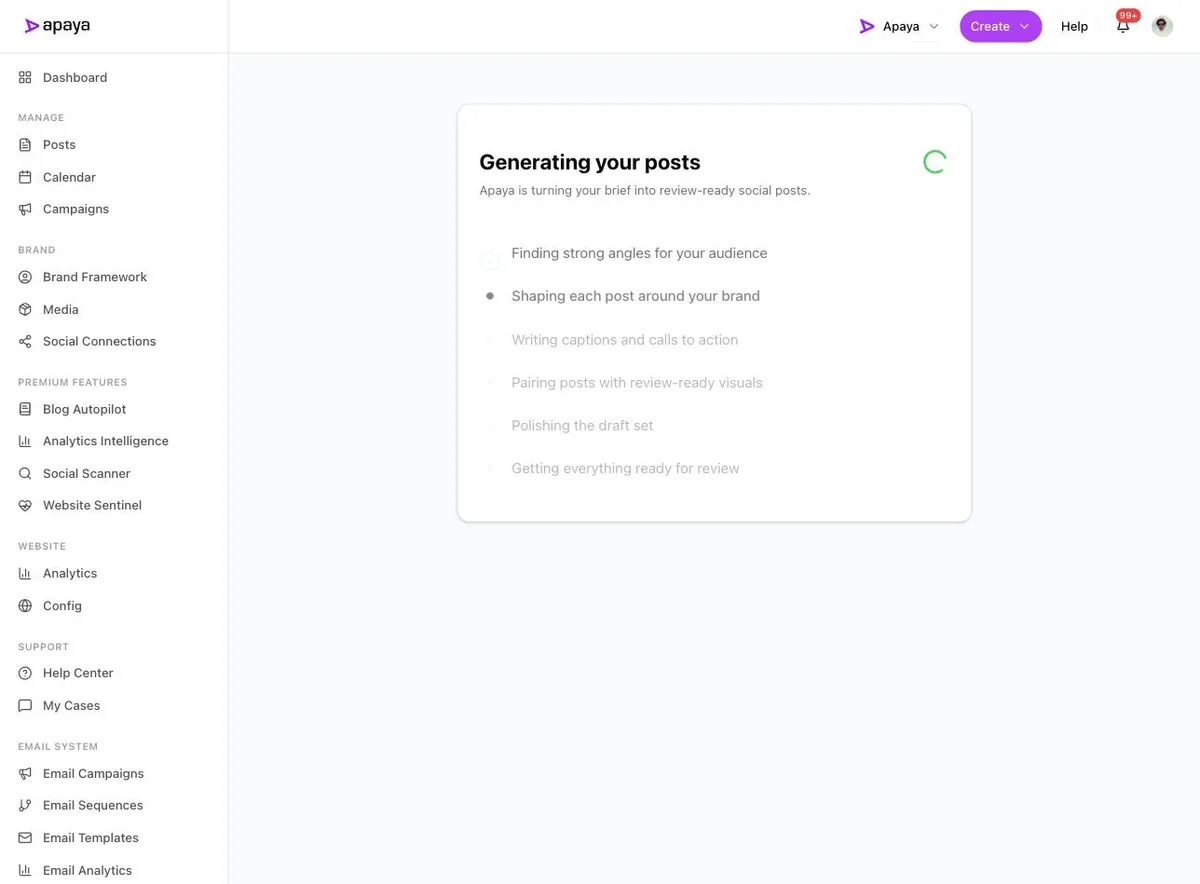
6. Wait a minute or two. The system finds angles, writes each caption in your brand voice, and pairs every post with a designed graphic.
7. Review the drafts. Six finished posts come back: caption, hashtags, and a branded graphic each. Keep what you like, hit Discard on what you don’t, and edit anything in between.
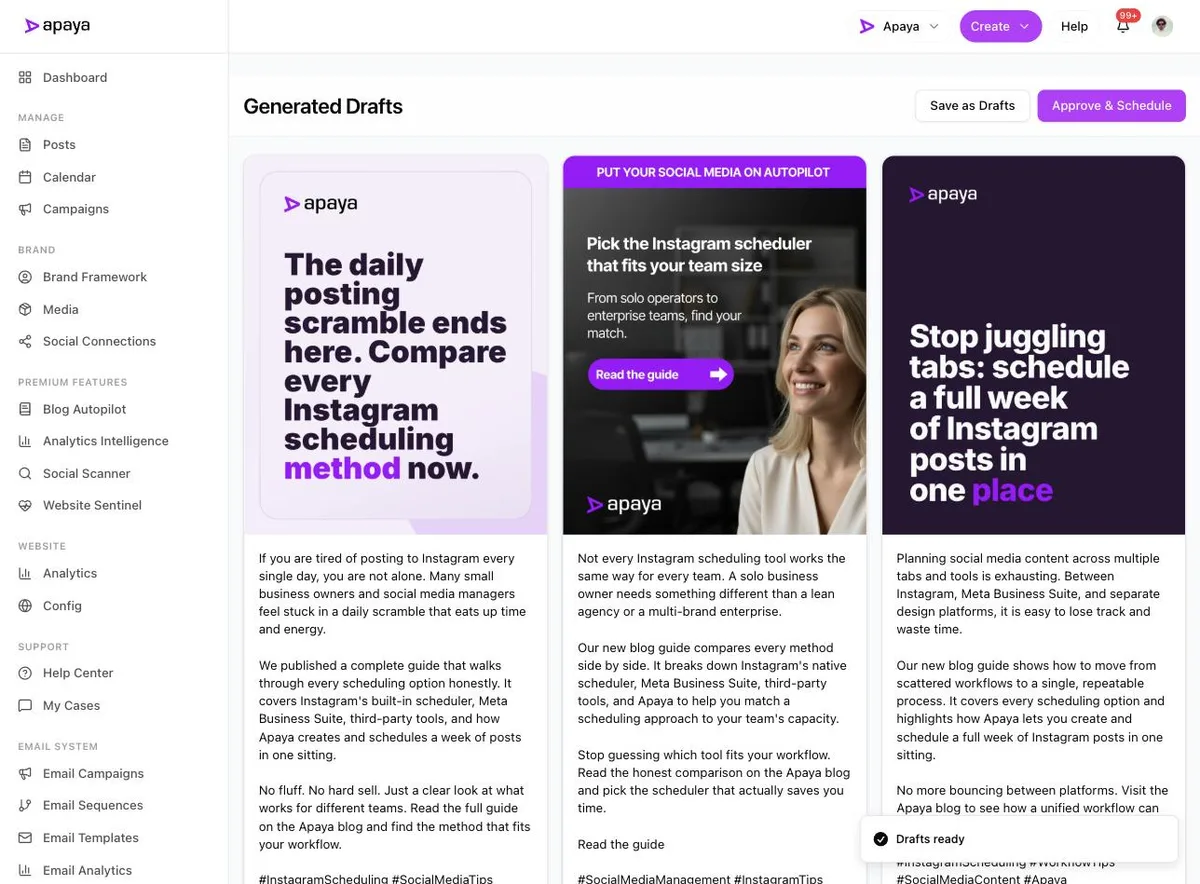
8. Approve & Schedule. One button takes everything you kept to the calendar, scheduled at optimal times. Or Save as Drafts if you want another pass later. Every post has its own controls, and nothing publishes without your approval.
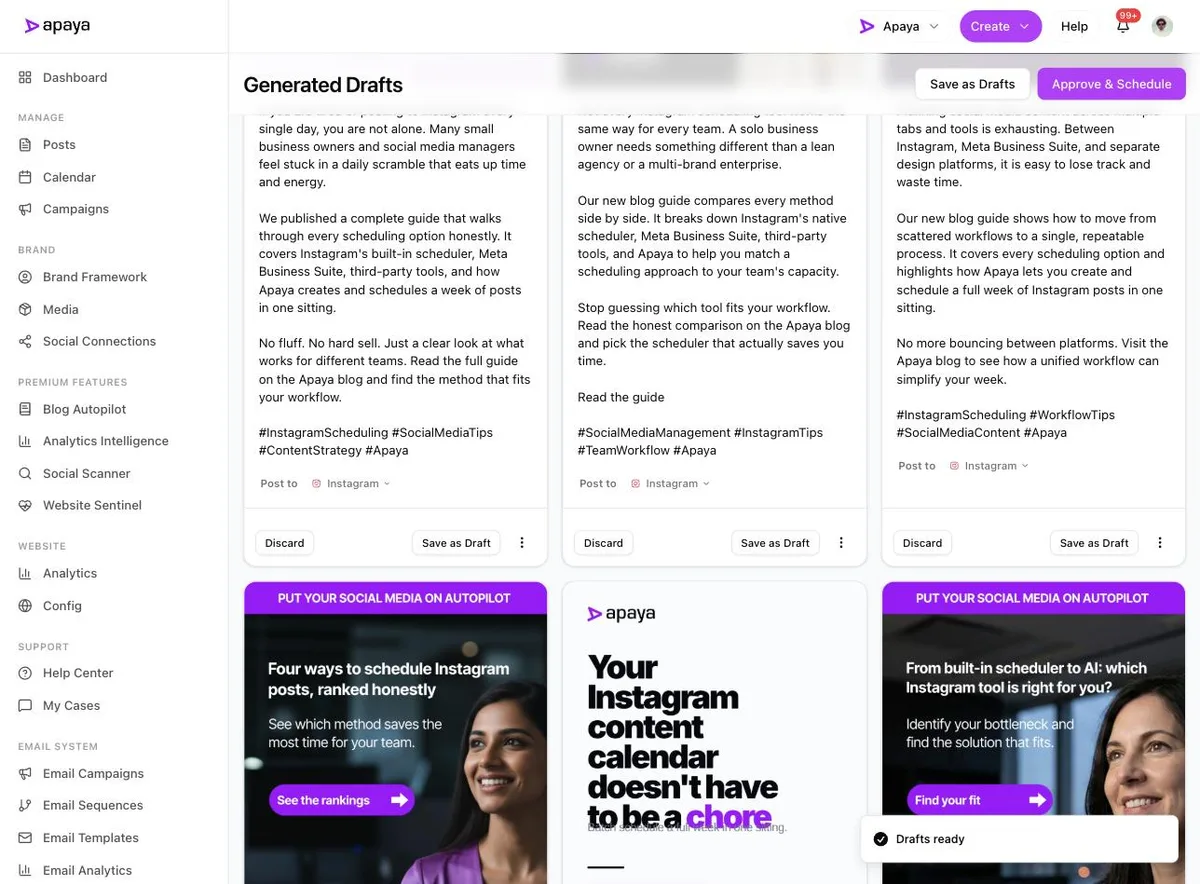
That’s a week-plus of Instagram, from blank page to scheduled, in one sitting of a few minutes. The scope note, so there’s no surprise later: this flow covers feed posts, with carousels, reels, and stories as their own creation paths in that menu from step 2. Pricing runs $55 to $183 a month depending on plan, against the 10 or so hours a month the manual version of that sitting costs.
Which method fits you
| Your situation | Use |
|---|---|
| One account, occasional posts, phone-first | Instagram’s native scheduler |
| One business on Facebook + Instagram, budget of zero | Meta Business Suite |
| Multiple platforms, content already produced, team workflow | A third-party scheduler |
| The content itself is the bottleneck | The create-and-schedule flow |
About timing
Every scheduling guide ends with a best-times chart, so here’s ours: the best time to post on Instagram matters far less than people hope, and the benchmark data says consistency beats clock precision by a wide margin. Schedule for reasonable waking hours, keep the cadence alive through your busy season, and spend the saved anxiety on better posts.
What else people ask
Can you schedule Instagram stories?
Meta Business Suite can schedule stories; the native app’s scheduler covers feed posts and reels. Third-party support varies by tool and is worth checking before you buy, since stories are where several schedulers fall back to sending you a reminder notification instead of publishing.
Can you schedule the same post to Instagram and Facebook at once?
Yes, from Meta Business Suite for the Meta pair, or from any multi-platform tool for the rest. In the Apaya flow above, that’s one more checkbox in the platform picker at step 4, and the caption gets adapted per platform rather than cross-pasted. The Facebook-to-Instagram guide has the full method comparison.
What happens if I edit a scheduled post?
All four methods let you edit before publish time; the difference is finding it. Native scheduling hides upcoming posts in your account’s scheduled content menu; everything else gives you a calendar, which is most of the argument for managing the month from a calendar in the first place.
Is auto-posting allowed by Instagram?
Yes, through the official API that legitimate tools use, with human approval built in. What gets accounts in trouble is automation of fake engagement (bots, mass-following, engagement pods), which is a different thing entirely. Publishing your own content on a schedule is what the platform’s business tooling is built for.
Schedule the month, then go run the business
Whichever method you pick, the goal is the same: decide once, in one sitting, what the next few weeks of Instagram look like, and stop making it a daily decision. The native button works. Business Suite is free. Schedulers organize. And when the posts themselves are the problem, the create-and-schedule flow makes the whole question take six minutes. Your feed’s job is to prove the business is alive; scheduling is how it does that without your daily attention.
Sources
- Instagram and Meta Business Suite scheduling documentation, verified in-product July 2026
- Apaya product screenshots captured live from my.apaya.com, July 2026
- Rival IQ (Quid) and Socialinsider 2026 benchmark data, as documented in our Instagram benchmarks deep dive
The easiest way to keep your social media profiles active.
Apaya writes the posts, designs the graphics, and publishes them for you. You approve.
See how Apaya worksThe easiest way to keep your social media profiles active.
Apaya writes your posts, designs your graphics, and publishes everywhere — automatically.