How to Get a QR Code for Your Facebook Page in 2026
Written by: Tim Eisenhauer
Last updated:
The easiest way to keep your social media profiles active.
Learn more about Apaya →
How do you get a QR code for a Facebook Page?
The reliable way to get a QR code for your Facebook Page is a free QR generator pointed at your public Page URL, the facebook.com/YourPageName address. Paste that link into any free generator, download the image, and print it. That code never expires, because it points at a web address that does not change. Facebook also has built-in QR options in its mobile app and in Business Suite, but Meta moves those around, so the generator route is the one that keeps working. Both are free. Here is each method, then the part every other guide skips: what happens after someone scans it.
The short version
A QR code sends people to your Page. Apaya keeps that Page worth landing on: it learns your business, writes and designs the posts, and publishes them on a schedule with your approval, so a scan never lands on a Page that went dark six months ago. From $55/mo.
Method 1: Point a free QR generator at your Page URL
This is the durable route, and it is the one I would use for anything you print. The QR code is a picture of your Page’s web address. As long as that address stays live, the code works, whether you print it today or reorder the same decal in three years.
-
Find your Page URL. Open your Facebook Page and look at the address: facebook.com/YourPageName. If you set a username, it is facebook.com/@YourPageName. Copy the whole thing. If you have not set a username yet, do that first in your Page settings, because the random numeric URL is uglier and harder to trust. Setting up the Page itself is step zero if you do not have one.
-
Paste it into a free generator. Canva, QR Code Generator, and a dozen others all do this at no cost. Paste the URL, and the code appears.
-
Download a high-resolution file. Grab a PNG for screens and an SVG for print. SVG stays sharp at any size, which matters when the code goes on a window or a van instead of a business card.
-
Test it before you print. Scan it with your own phone, on both iOS and Android if you can, and confirm it opens your Page. Print a test on paper and scan that too. A code that reads on screen but not on a matte sticker is a real thing.
Static vs dynamic: a plain generator makes a static code that points straight at your URL and never expires. Paid “dynamic” codes route through the tool’s own link and can die if you cancel. For a Page URL that will not change, static is the safer buy.
Method 2: Facebook’s built-in QR code options
Facebook has shipped its own QR features on and off for years. When they exist, they are free and they point at your Page automatically.
- In the mobile app: open your Page, look in the share menu or the three-dot menu for a QR code option, and save the image to your camera roll.
- In Meta Business Suite: some accounts see a QR option under the Page’s link or profile settings.
The caveat: Meta relocates and removes these buttons regularly, so a tutorial from last quarter may not match your screen today. If you do not see a QR option where it should be, do not spend twenty minutes hunting. Fall back to Method 1, which does not depend on Meta keeping a button in one place. That is why I lead with the generator: it still works when the app redesigns itself.
Where to put your Facebook Page QR code
This is where most guides stop, right when the useful part starts. A QR code is worthless in a folder. It earns its keep on physical surfaces where someone already standing near your business can scan it in two seconds:
- Window decal or door sticker
- Table tent or menu (works well for restaurants and cafes)
- Receipt and packaging
- Vehicle wrap or magnet
- Business card, flyer, name tag, and event signage
Point it at your Page, not a single post. A post gets old fast; your Page is the front door that stays current. For local businesses, that front door is often the deciding factor: someone scans the code off your window, and what they see next decides whether they walk in.
Why your Facebook Page needs to look active before you print the QR
Here is the thing nobody prints on the decal. A QR code is a promise. It tells a stranger there is something worth seeing on the other side. When they scan it and the top post is from eight months ago, the promise breaks, and a dead Page reads worse than no Page at all. You spent money on the sticker to lose trust at the door.
Keeping a Page current by hand is the hard part. Writing captions, making graphics, and posting a few times a week runs 8 to 12 hours a month, and it is the first thing to slide when the business gets busy. The QR code does not care that you were slammed in July. It keeps sending people to whatever your last post happened to be.
The same job in Apaya
This is the gap Apaya fills, and I want to be clear about what it does and does not do. Apaya is not a QR generator. It does not make the code. What it does is keep the Page that the code lands on active, so every scan hits a Page that looks alive.
Think of it as what Hootsuite or Buffer do, plus the part they leave to you. Schedulers organize content you still have to make. Apaya makes it: it learns your business from your website, then writes the captions and designs the graphics, so the queue is never empty. Here is the flow.
1. Connect your Facebook Page. You have to be an admin of the Page to connect it, which keeps ownership where it belongs. If you are not an admin yet, get added as one first.
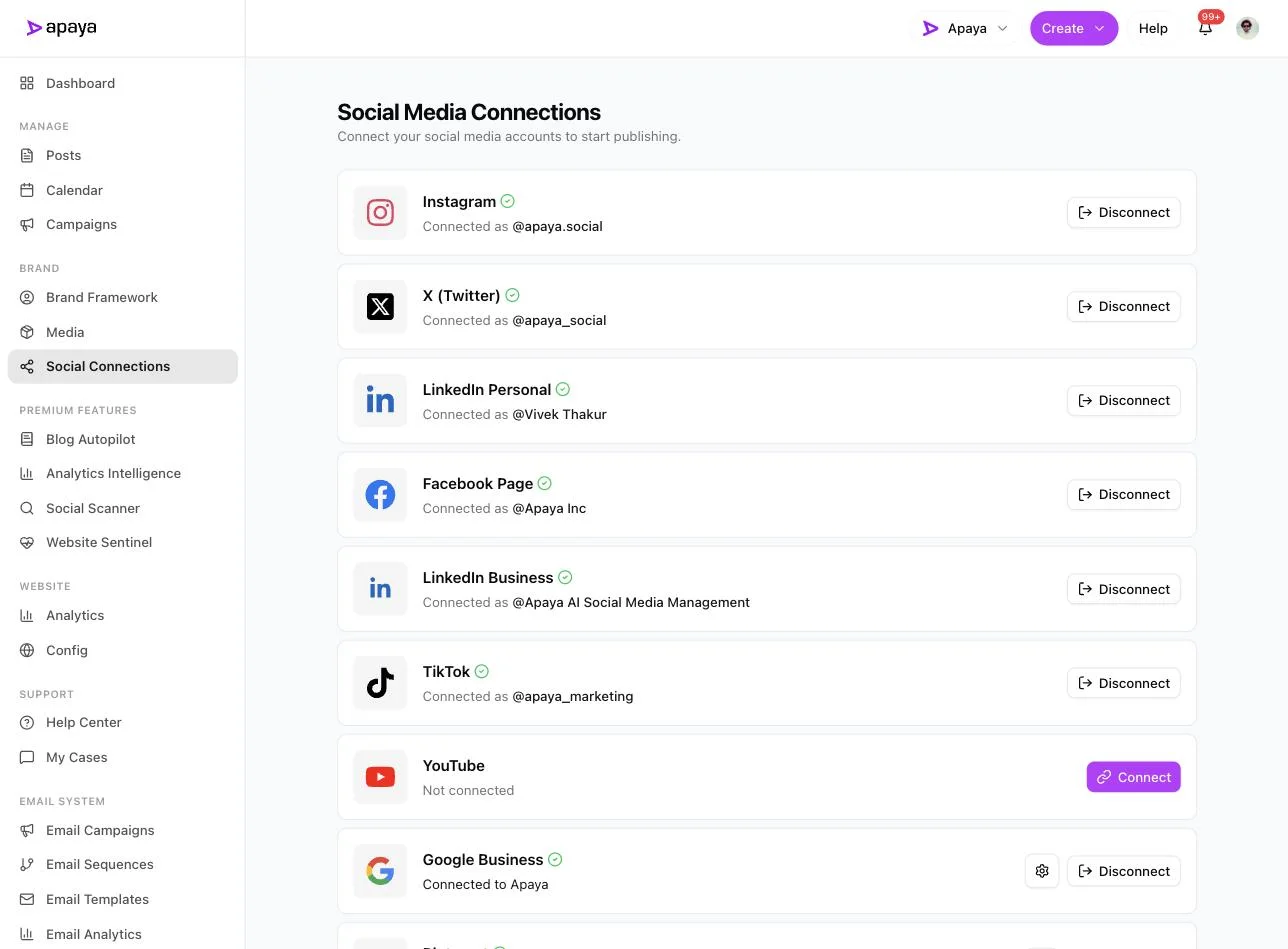 Apaya’s Social Connections page, with a Facebook Page connected and showing a green check next to Instagram, X, LinkedIn, TikTok, and Google Business. You connect the Page here, and you have to be its admin to do it.
2. Let it write and design the posts. Give it a short brief or point it at your site, and it returns finished drafts: a caption and a branded graphic for each. It builds carousels and reels from the same brief too, so the Page has range instead of the same text card every week.
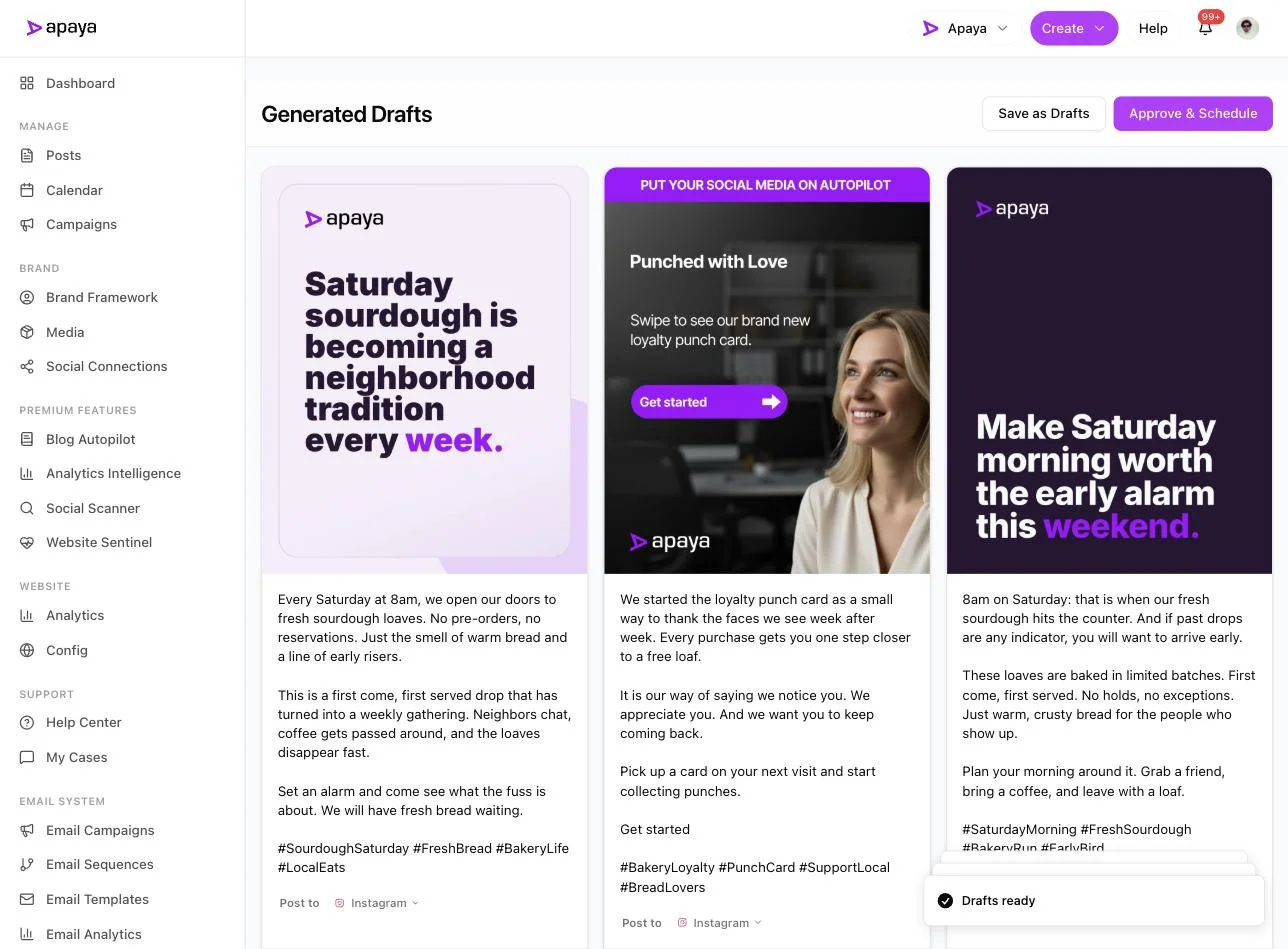 Three generated post drafts in Apaya. Each comes back with its own designed graphic and full caption, plus Save as Drafts and Approve and Schedule controls, so nothing goes out until you sign off.
3. Schedule and publish, with approval. Approved posts land on a calendar and publish themselves at set times. You can require approval before anything schedules, so the automation never runs ahead of you. Pair it with the best times to post on Facebook, and the Page keeps a steady rhythm.
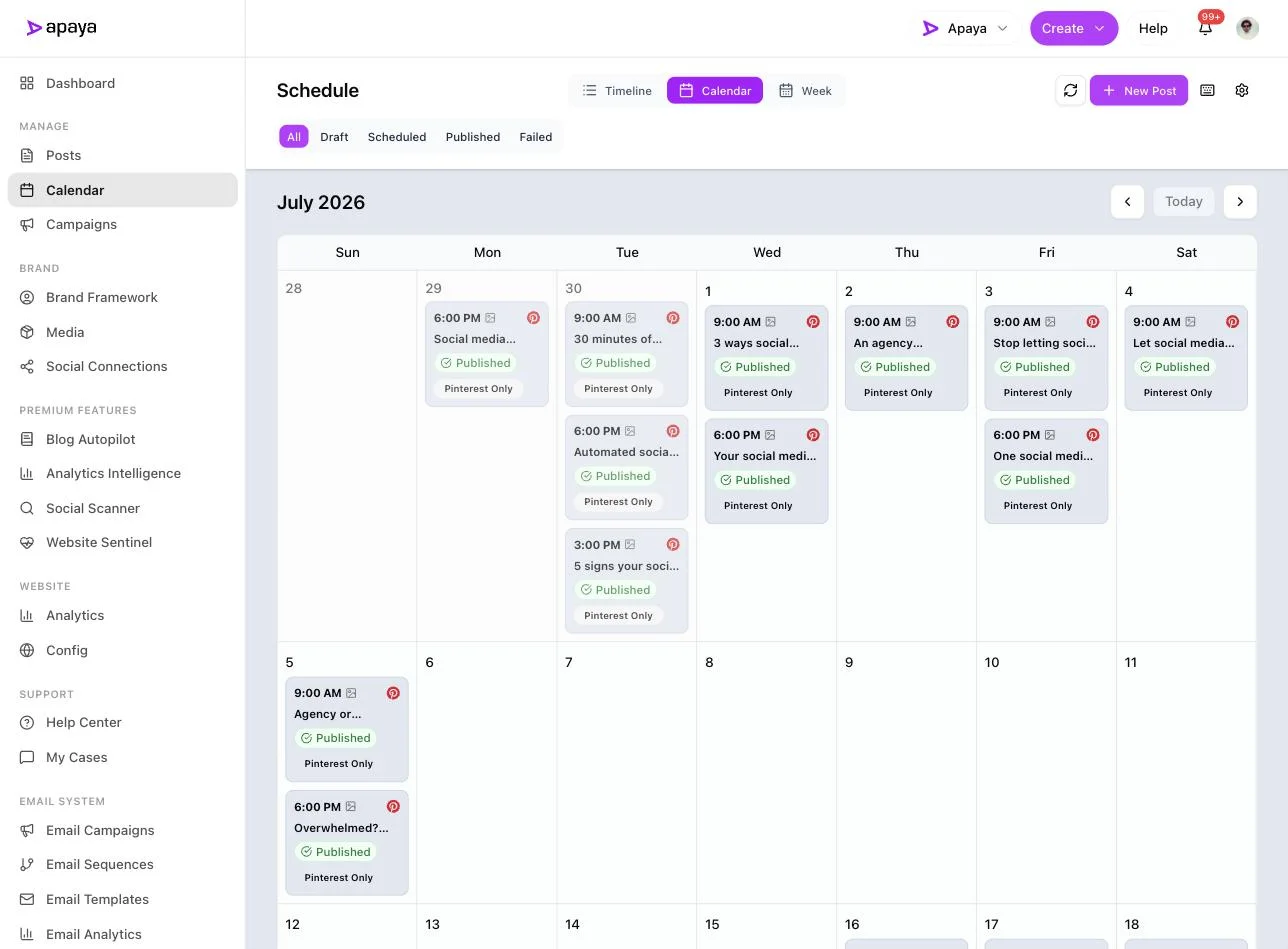 Apaya’s month calendar for July 2026, with published posts sitting on their days, each with a time and a platform badge. This is what a Page that never goes dark looks like from the back end.
What Apaya does that a scheduler does not
The failure mode with printed QR codes is a common one: the code works fine, the Page behind it is a ghost town. A scheduler does not fix that, because a scheduler still needs you to produce every post. An empty queue publishes nothing, and the QR keeps pointing at your last effort from spring.
The difference is the content layer. Apaya does the production, which is the 8 to 12 hours a month that usually breaks consistency. That is the whole case, and I will keep it to what the tool is for: time saved and a Page that stays current. It is the engine that keeps the Page alive, and if you ever run dry on what to feed it, our Facebook post ideas are written to drop straight in as briefs.
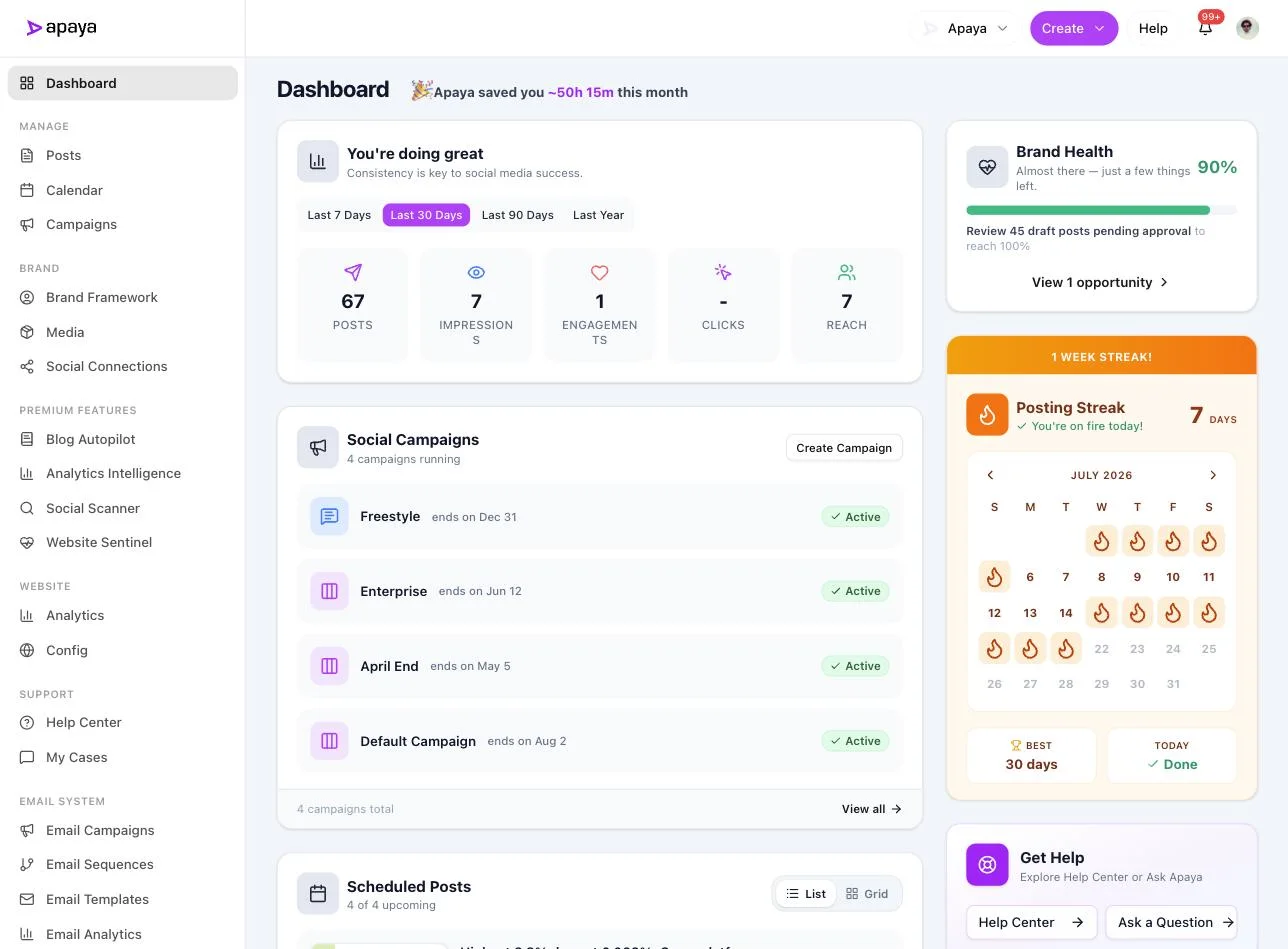 The Apaya dashboard reporting roughly 50 hours saved this month, a seven-day posting streak, and brand health at 90 percent.
On cost, this runs from $55 a month at current pricing, against an agency retainer in the thousands or the 8 to 12 hours a month you would spend doing it yourself. The QR code on your window is free. Making it pay off is the part worth budgeting for.
Common questions about Facebook Page QR codes
Do Facebook Page QR codes expire?
A static code pointed at your Page URL does not expire. It encodes your web address, and as long as facebook.com/YourPage is live, the code works, this year or five years from now. What can expire is a “dynamic” code from a paid tool that routes through the tool’s own link; if you stop paying, that redirect can die. For a Page URL that stays put, use a static code and skip the subscription.
How do I find my Facebook Page URL for the QR code?
Open your Page and read the address bar: it is facebook.com/YourPageName, or facebook.com/@YourUsername if you set a username. On mobile, tap the three-dot menu and copy the Page link. Set a custom username in your Page settings before you generate the code, so the URL is clean and readable.
Can I get a Facebook Page QR code for free?
Yes. Free generators turn your Page URL into a code at no cost, and Facebook’s own built-in QR options are free when they appear in the app or Business Suite. You never need to pay for a basic static code to a Page.
Should the QR code link to my Page or a specific post?
Your Page. A single post ages out and becomes a strange place to land weeks later. Your Page is the front door that stays current, which is the whole point of keeping it active before you print.
Do I need to be a Facebook Page admin to connect the Page to Apaya?
Yes. You connect the Page from Apaya’s Social Connections screen, and you have to be an admin of that Facebook Page to do it. Note that Apaya’s own roles and approval settings are separate from Facebook’s Page roles; they control who can create and approve content inside Apaya, not your Page’s permissions on Facebook.
Related Facebook and Instagram guides
- How to automate Facebook posts: every method for keeping the Page active, from free to full automation.
- 45 Facebook post ideas: a month of briefs so the Page behind your QR code never goes quiet.
- Best time to post on Facebook: when to schedule so the posts land.
- How to create a Facebook business Page: the starting point if you do not have a Page yet.
- AI social media for local businesses and for restaurants: the print-and-scan play by industry.
Sources
- Facebook and Meta Business Suite QR and Page features, verified in-product July 2026
- Apaya product screenshots captured live from my.apaya.com, July 2026
The easiest way to keep your social media profiles active.
Apaya writes the posts, designs the graphics, and publishes them for you. You approve.
See how Apaya worksThe easiest way to keep your social media profiles active.
Apaya writes your posts, designs your graphics, and publishes everywhere — automatically.