How to Create a Facebook Business Page: Step by Step for 2026
Written by: Tim Eisenhauer
Last updated:

The easiest way to keep your social media profiles active.
Learn more about Apaya →
You create a Facebook business Page from a personal Facebook account at facebook.com/pages/create or inside Meta Business Suite. Name the Page, pick a category, add a short bio, upload a profile photo and a cover image, then publish. Set a username and an action button, and the Page is live. It takes about 20 minutes and costs nothing. Yes, you need a personal account to start, but your personal profile stays separate and hidden from the Page. The setup is the easy part. The empty Page that stares back at you afterward is the real job, and that is the part most guides skip.
The short version
Building the Page takes 20 minutes. Keeping it posting takes 8 to 12 hours a month. Apaya learns your business from your website, writes and designs the Facebook posts, schedules them, and publishes on your approval. From $55/mo. The walkthrough below covers both jobs: building the Page, then filling it.
Do you need a personal Facebook account to make a business Page?
This is the question that shows up under the search box more than any other, so let me answer it straight before the steps. Yes, you need a personal Facebook profile. Facebook does not offer a standalone business login you can sign up for cold. The Page attaches to your personal account, which becomes its first admin.
Here is the part people worry about and do not need to: the two are separate. Anyone who visits your Page sees the Page. They do not see your profile, your friends list, your vacation photos, or anything you post personally. Your name is not printed on the Page. If you still would rather keep your own profile out of it, create the Page and then add a teammate as an admin, or have the business owner create it from their account. What you cannot do is run a Page with no personal account behind it at all.
How to create a Facebook business Page step by step
The 2026 setup runs about 20 minutes. Every field below matters more for a local business than a generic guide lets on, so I will call out the ones that get skipped.
-
Start from your personal account: Log in at facebook.com. This login becomes the Page’s first admin. Nothing you do here posts to your personal timeline.
-
Open the create form: Go to facebook.com/pages/create, or open Meta Business Suite at business.facebook.com and choose to create a new Page. Both land in the same place.
-
Name the Page and pick a category: Use your real business name. For the category, type what you do (dentist, HVAC contractor, coffee shop) and pick the closest match. The category is not cosmetic. It controls which fields and buttons Facebook offers you, so choose the specific one, not “Local business.”
-
Write the bio: You get 255 characters. Say what you do and who you serve in one plain line. Skip the slogans. This text shows up in search and previews.
-
Add a profile photo and cover image: The profile photo is your logo, displayed at 170 by 170, so upload a square version larger than that. The cover image is the wide banner, around 1640 by 856. Keep any text near the center, because mobile crops the edges.
-
Publish, then claim your username: Once the Page exists, set a username, the @handle. This becomes your short URL, facebook.com/yourbusiness, the one you put on business cards and your website. Match the handle you use on your other platforms.
-
Fill in the business details: In settings, add your website, phone, email, address or service area, and hours. This is the part generic tutorials skip, and it is what a customer sees when they tap “About.” A service-area business like a plumber or a mobile groomer can list the areas served instead of a storefront address.
-
Add an action button: Under the cover image, add the button that matches how you get customers: Book Now, Call Now, Send Message, or Shop Now. This is the most useful control on the whole Page, and most new Pages leave it blank.
-
Connect Instagram and invite your team: If you post to both, link your Instagram account to the Page so you can run them together. If more than one person manages the Page, add them as admins instead of sharing a password.
-
Invite followers, then stop: Facebook will nudge you to invite friends to follow the Page and tick off a setup checklist. Do it once. Then ignore the rest of the checklist, because it ends here, and your Page is now an empty storefront with the lights on and nothing on the shelves.
One current note so you are not hunting for a setting that moved: Facebook Pages count followers now, not likes, and you manage the Page from your own profile or from Business Suite. You do not log into a separate Page account.
What to post on a new Facebook Page
Here is what a create-a-page tutorial never tells you. The Page is 20 minutes, and it is the last easy thing about it. A Page that posts twice a week looks like an open business. A Page whose most recent post is from four months ago looks closed, and a closed-looking Page is worse than no Page at all. Consistency is the whole game, and consistency is a time problem, not a talent problem.
Your first week of posts is not complicated:
- An intro post: who you are, what you do, one good photo.
- Your services or menu: what people can buy, with prices where it helps.
- Hours and location: pinned, so nobody has to dig.
- The questions you answer every week: the ones customers ask before they book or buy.
Then settle into two to four posts a week. If you want a full month mapped out, our 45 Facebook post ideas and its 30-day calendar are built to be your first month. Want examples for your trade? We have first-post ideas by industry: dental, HVAC, roofing, lawn care, auto repair, real estate, and veterinary.
Once you have posts to publish, you can schedule them free in Meta Business Suite or automate the whole cycle. Our guide to automating Facebook posts covers every method, from the free calendar to full production.
How to fill a new Facebook Page with Apaya
Building the Page is manual, and you do it once. Filling it is the part that repeats every week, and it is the part Apaya handles. Here is the same job, from an empty Page to a month of posts, captured from a live account.
One thing up front: you have to be an admin of the Facebook Page to connect it. Apaya asks Facebook for permission through Facebook’s own login screen, so the person who owns the Page does the connecting. Apaya’s own team roles are a separate system from Facebook’s Page roles. Connecting the Page is about your Facebook permissions, not your Apaya seat.
1. Connect the Page. In Social Media Connections, you link the Page once.
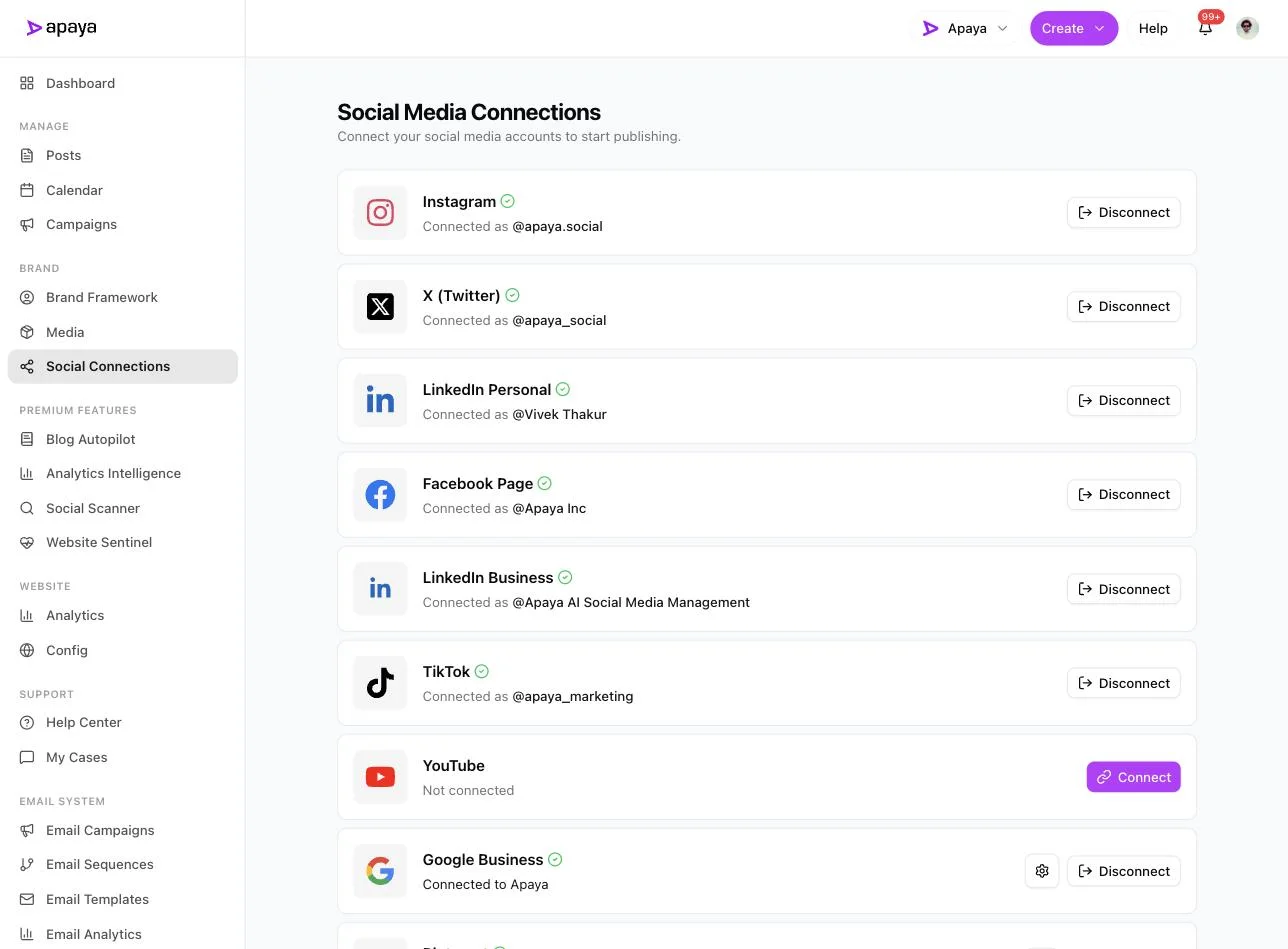
The Connections screen. Facebook Page shows a green check next to Instagram, X, LinkedIn, and TikTok, with Google Business connected and YouTube still available to add. Connect once and Apaya can publish to the Page.
2. Give it one brief. Type a plain brief: your website URL and what the business is, or a specific topic. You do not write the posts. You describe them. This example is a bakery announcing a sourdough drop, with three posts queued.
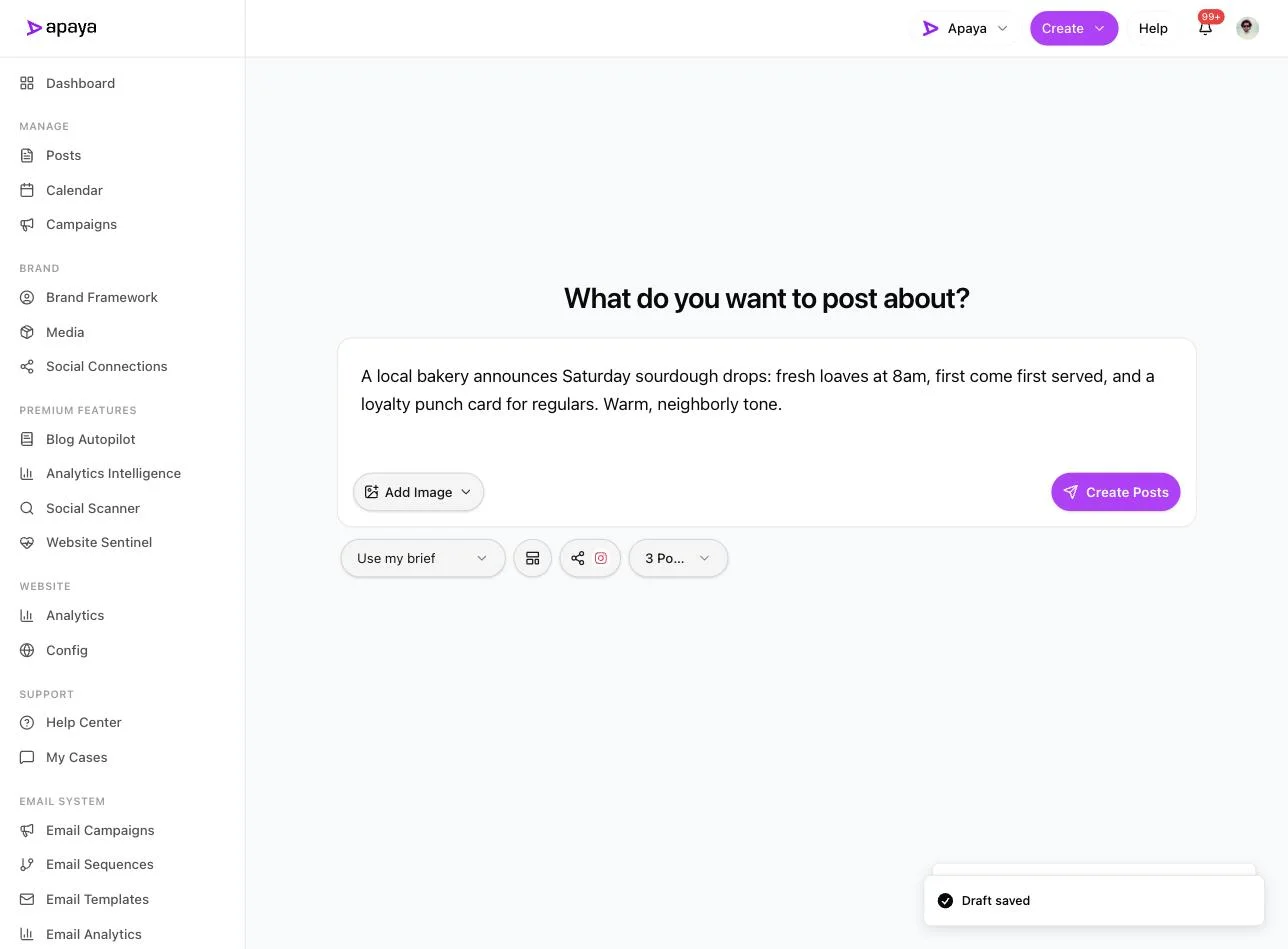
The composer with a bakery brief and three posts selected. The platform picker (Instagram is chosen in this shot) is where you would select your Facebook Page instead, or add it alongside the others.
3. Apaya writes and designs the set. About a minute later the finished posts come back: captions and matching designs, ready to review. This is the layer a scheduler does not have. A scheduler hands you an empty box here. Apaya hands you finished posts.
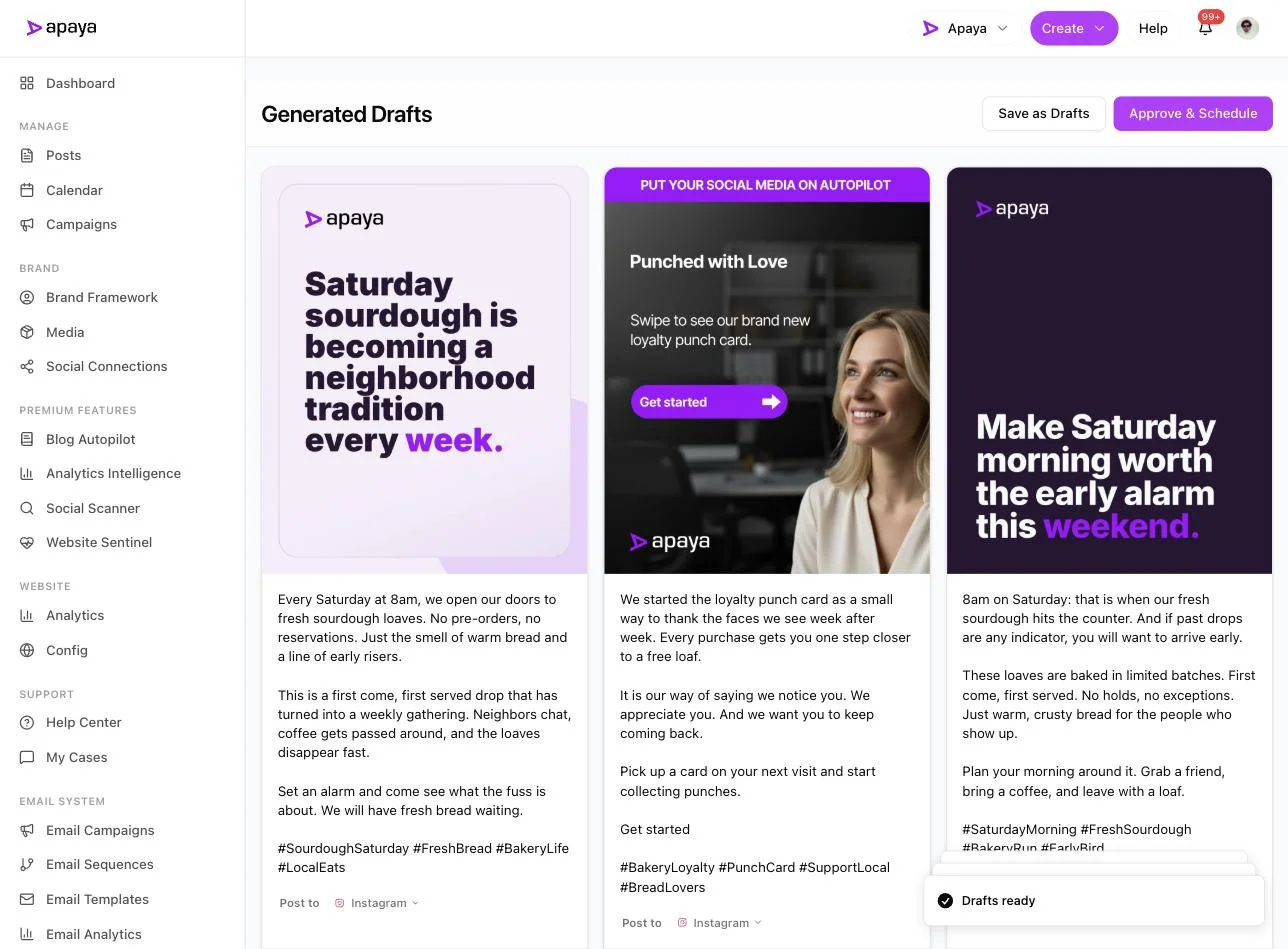
Three generated drafts, each with its own template and full caption, plus Save as Drafts and Approve and Schedule buttons. Nothing here was written or designed by hand. The AI Facebook post generator does the drafting; you do the approving.
4. Send the month to the calendar. Approve what you like and it lands on the calendar at set times. Run the brief a few times and the first month fills in.
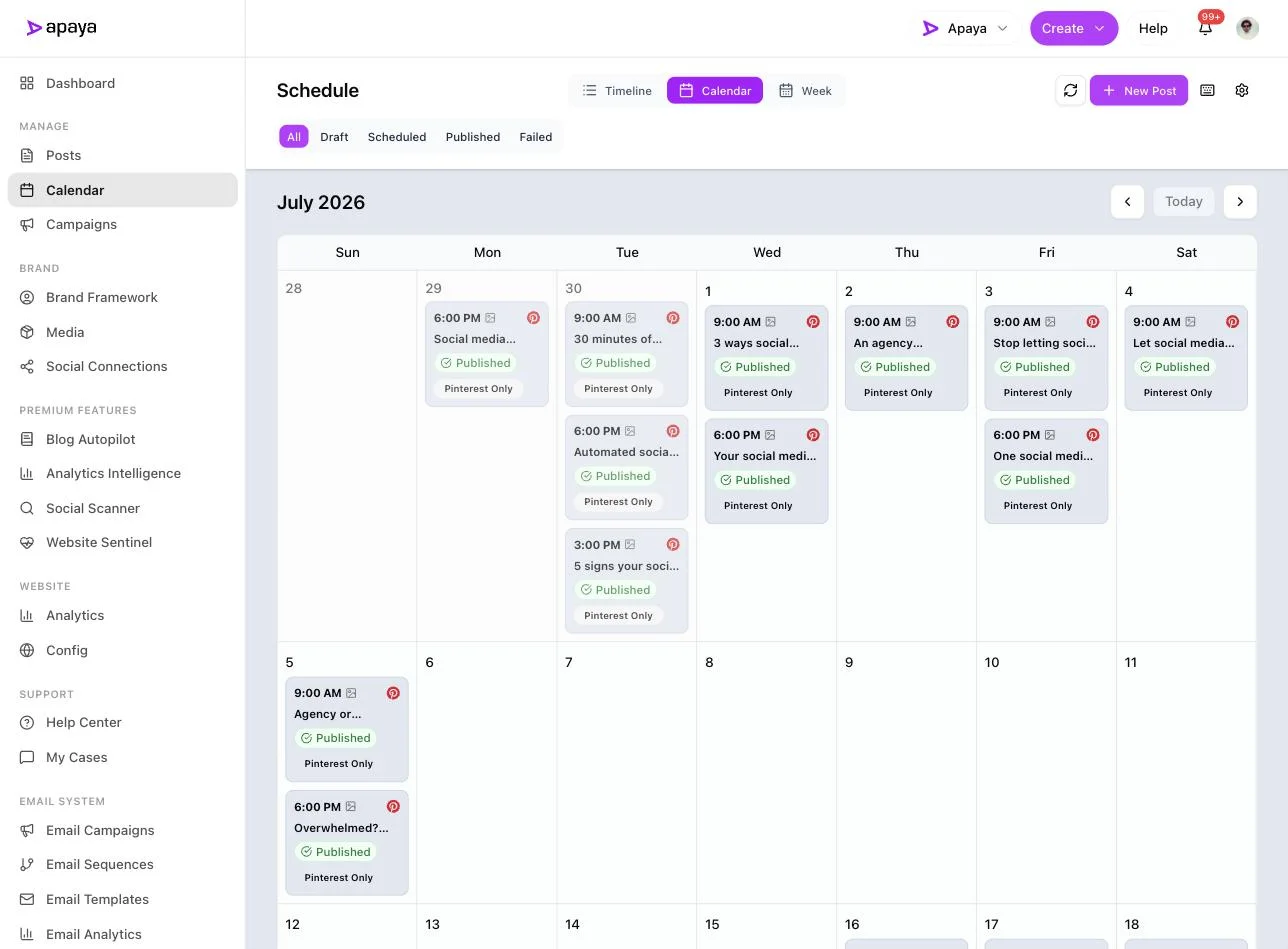
The month calendar, July 2026, with posts on their days, times, and platform badges. This is the payoff: a Page that keeps posting without you opening Canva on a Sunday night.
What Apaya does that a scheduler does not
Apaya does what Hootsuite or Buffer do, and one thing they do not. Hootsuite and Buffer are schedulers. They give you a calendar, a queue, and a place to line up posts across platforms. That is useful. But a scheduler organizes content you still have to make. The queue is empty until you fill it, and filling it is the 8 to 12 hours a month that goes missing when the business gets busy.
Apaya adds the layer underneath the calendar: it makes the content. Posts, carousels, and reels from one brief, in your brand voice, designed and ready. Then it schedules and publishes them, the same as a scheduler would. You approve everything first. Nothing posts without your sign-off.
Two things make this matter for a business Page, and neither is about chasing numbers:
- Time. The Page setup is 20 minutes. The ongoing production is the cost. Turning one brief into a finished set of posts is the difference between an evening in Canva and a two-minute review.
- Consistency. A Page dies from silence, not from imperfect posts. A production layer means the Page keeps posting on the weeks you are slammed, which is most weeks. Consistency is a time problem, and removing the time problem is the whole point.
| Job | Buffer or Hootsuite | Apaya |
|---|---|---|
| Line up posts on a calendar | Yes | Yes |
| Publish to Facebook automatically | Yes | Yes |
| Write the captions | You do | Apaya, you approve |
| Design graphics, carousels, and reels | You do | Apaya, you approve |
| Learn your brand voice from your website | No | Yes |
If you want the wider picture of how this fits a Facebook strategy, see our guide to Facebook marketing automation.
Common questions about creating a Facebook Page
Do you need a personal Facebook account to create a business Page?
Yes. Facebook does not sell standalone business logins. You create the Page from a personal profile, and that profile becomes the Page’s first admin. The two stay separate: visitors see the Page, not your profile. If you would rather not use your own profile, create the Page and add a colleague as admin, or have the owner create it. There is no way to run a Page with no personal account behind it.
Is a Facebook business Page free?
Yes. Creating and running a Page costs nothing. You only pay if you run ads. The real cost is time: 8 to 12 hours a month to write, design, and keep the Page active. That production work, not the setup, is what a paid tool or a service replaces.
How long does it take to create a Facebook business Page?
About 20 minutes for the setup: name, category, bio, profile photo, cover image, username, business details, and an action button. Anyone can do it. Filling the Page with a month of content is the part that takes longer, and it is the part that decides whether the Page works.
What is the difference between a Facebook profile and a business Page?
A profile is a personal account with friends and a 5,000-friend cap. A Page is public, takes unlimited followers, gets an action button, analytics, and a scheduler, and can be run by a team. Businesses need a Page. Running a business off a personal profile breaks Facebook’s terms and gives you none of the business tools.
What should you post on a brand new Facebook business Page?
Start with an intro post, your services or menu, your hours and location, and answers to the questions customers ask you every week. Then keep a steady two to four posts a week. A Page that posts looks open. A Page whose last post is four months old looks closed.
Build the Page today, fill it this week
The Page is the easy 20 minutes. Go do it now: name it, pick the specific category, add the action button, and publish. The part that decides whether the Page works is what happens next week, and the week after, when you are busy and the Page still needs a post.
You have three ways to carry that: do it by hand, schedule it free in Business Suite, or hand the production to Apaya and approve a month at a time. From $55/mo at current pricing.
Related guides:
- Add an admin to your Facebook Page
- Link Instagram to your Facebook Page
- 45 Facebook post ideas and a 30-day calendar
- How to automate Facebook posts
Sources
- Facebook Page and Meta Business Suite setup flow, verified in-product July 2026
- Apaya product screenshots captured live from my.apaya.com, July 2026
The easiest way to keep your social media profiles active.
Apaya writes the posts, designs the graphics, and publishes them for you. You approve.
See how Apaya worksThe easiest way to keep your social media profiles active.
Apaya writes your posts, designs your graphics, and publishes everywhere — automatically.