How to Add an Admin to a Facebook Page (and How to Remove One)
Written by: Tim Eisenhauer
Last updated:

The easiest way to keep your social media profiles active.
Learn more about Apaya →
How do you add an admin to a Facebook Page?
To add an admin to a Facebook Page, open your Page, go to Settings, then Page access. Under People with Facebook access, click Add New, search for the person by name or the email on their account, choose Full control or Partial control, and click Give Access. They get an invitation they have to accept before anything changes. That is the whole native flow. The New Pages Experience retired the old Admin, Editor, and Moderator labels, so today you grant Facebook access at one of two levels, and the level you pick decides whether that person can later remove you.
The short version
Most people add an admin to hand off the posting. Apaya lets you delegate that work without giving anyone a Facebook admin seat: connect your Page once as its admin, add your employee or VA as an Apaya user, and nothing publishes until you approve it. From $55/mo. The full native Facebook walkthrough is below.
Full control vs partial control, and why it matters
Before you click anything, understand the two levels, because this is the part every other guide skips and the part that can cost you the Page.
- Full control can do everything you can do. Post, reply, run ads, see insights, and also add and remove other people, change access levels, and delete the Page. A person with full control can remove you.
- Partial control runs the Page day to day. Create and schedule posts, reply to comments and messages, and view insights. What partial control cannot do is manage other people’s access, remove you, or delete the Page.
The decision is short. Give full control only to a business partner or co-owner you trust the way you trust yourself. Give everyone else partial control: employees, a virtual assistant, a marketing agency, a freelancer. The moment you hand full control to an outside party, you have given someone the technical ability to lock you out of the Page you built. Meta added the two-tier system in the New Pages Experience for this exact reason, so use it the way it was meant to be used.
If you do not have a Page yet, the person who creates it becomes its first full-control admin, which is worth knowing before you delegate. Our guide on how to create a Facebook business Page covers that setup.
How to add an admin to a Facebook Page, step by step
On desktop
- Go to your Facebook Page and click Settings. On the New Pages Experience the option sits under the Page’s menu, sometimes grouped under Page setup.
- Click Page access. You will see two lists: People with Facebook access and People with task access.
- Under People with Facebook access, click Add New, then Next.
- Type the person’s name or the email address on their Facebook account and select them.
- Choose the level. Leave the Allow this person to have full control toggle off for partial control, or turn it on for full control.
- Click Give Access and enter your Facebook password to confirm.
- The person gets an invitation. Nothing changes until they accept it, so tell them to check their notifications.
On the Facebook mobile app
- Tap the menu, open Pages, and select your Page.
- Open Settings, then tap Page access (some versions route this through the Professional dashboard).
- Tap People with Facebook access, then Add.
- Search for the person, pick full or partial control, tap Give Access, and confirm with your password.
The Meta Business Suite app works too, and if you manage several Pages it is the faster place to do this from a phone.
Change someone’s access level
Same screen. Open Page access, click the person under People with Facebook access, and toggle full control on or off, then save and confirm with your password. This is how you promote a trusted manager, or how you walk an agency back down from full control to partial when you realize you gave them too much.
If you want granular team roles closer to the old Editor and Moderator setup, that lives under People with task access, which you assign through a Business portfolio in Business settings rather than on the Page itself.
How to remove an admin from a Facebook Page
This is the half of the job nobody explains well, and it is the one you will need the day an employee quits or you fire your agency.
- Go to Settings, then Page access.
- Under People with Facebook access, click the person.
- Choose Remove access and confirm with your password.
Their access ends right away. Two things to know. First, if the person had full control, Facebook builds in a short waiting period after someone is newly granted full control before they can remove other full-control admins or delete the Page. That safeguard helps, but do not lean on it. The real protection is not handing out full control to begin with. Second, if you shared your password instead of adding the person properly, there is nothing to remove here. You are stuck changing your password and turning two-factor back on, which is exactly the mess the next section is about.
Why you cannot add an admin, and how to fix it
If the button will not cooperate, it is usually one of these:
- You do not have full control. Only a full-control admin can grant or change Facebook access. Partial control cannot add people.
- The person has no findable account. They need a Facebook account, and you have to search the exact name or the email tied to that account.
- The invitation is still pending. Access does not appear until they accept. Until then it looks like nothing happened.
- You manage the Page through a Business portfolio. In that case you add people in Business settings, not on the Page.
Two traps that cost owners their Page
The sole-admin lockout. If you are the only person with full control and you lose access to your personal Facebook account, recovering the Page is slow and sometimes a dead end. Keep one second full-control person you trust, a business partner or co-founder, so you are never one locked account away from losing everything. This is the single case where a second full-control seat earns its risk.
The shared password. The move people reach for is handing over their Facebook login. Do not. A shared password cannot be scoped, cannot be cleanly revoked, breaks two-factor, and turns every departure into a fire drill. Adding someone through Page access gives you an on and off switch. Handing over your password gives you a liability. If your goal is delegating the posting rather than the Page itself, there is a cleaner path.
The same job in Apaya, without a Facebook admin seat
Step back and ask why you are adding an admin at all. Nine times out of ten it is to let someone else do the posting. You can do that without giving up a single Facebook permission.
Connecting a Page to Apaya requires that you are already a Facebook Page admin with full control, because Facebook only lets an admin authorize an outside tool. You do that connection once.
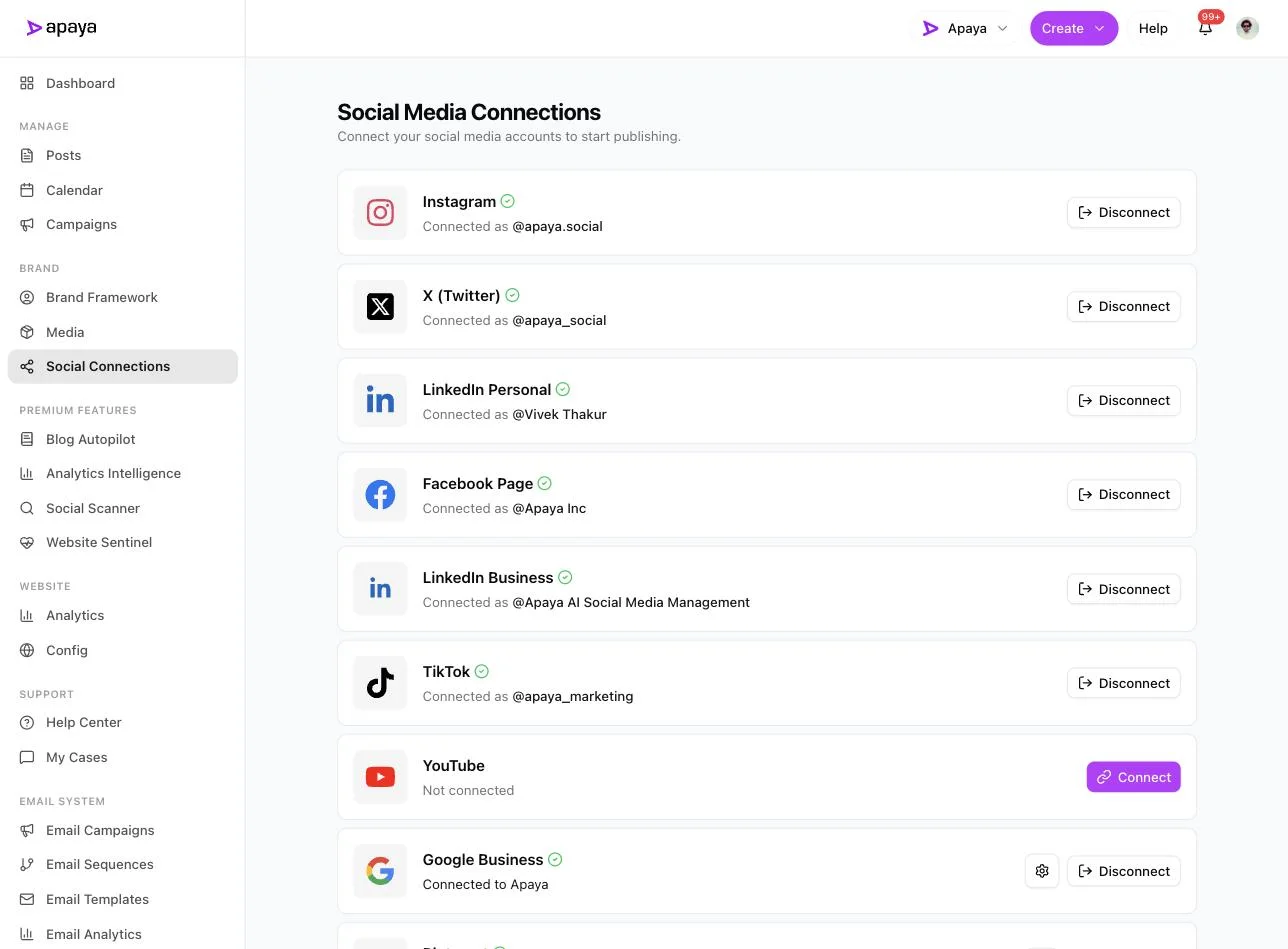
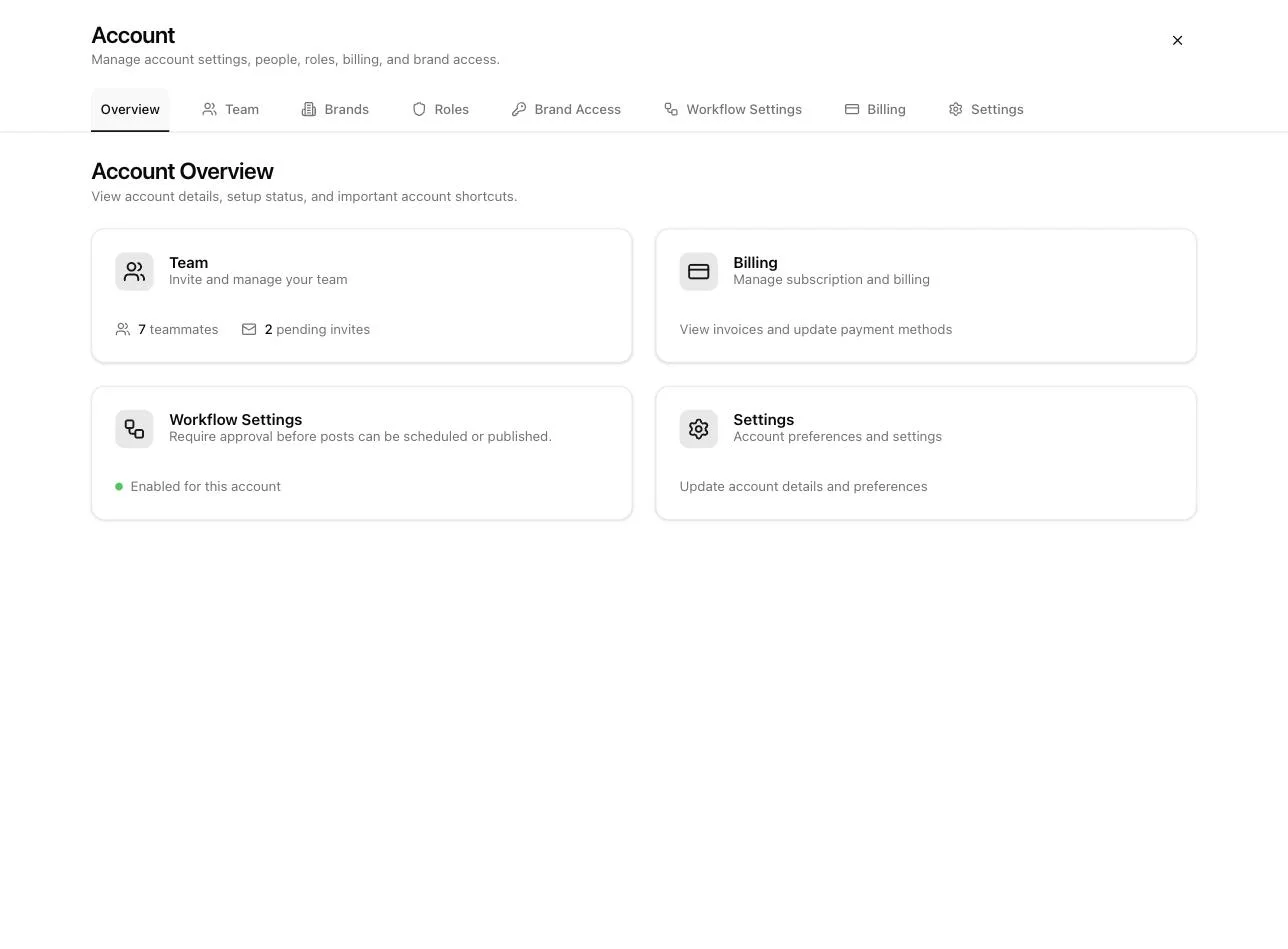
From there you add the people who help you run it. Invite your employee, VA, or agency as an Apaya user, and the account overview tracks who is on the team and who still has an invite pending. Notice the workflow setting in the same view: approval is required before anything can be scheduled or published.
Each person gets a role that defines what they can touch. A Creator drafts and schedules but cannot publish over your head. An Approver signs off. An Owner runs the account. The roles carry per-permission checkboxes, so the access is scoped to the work.
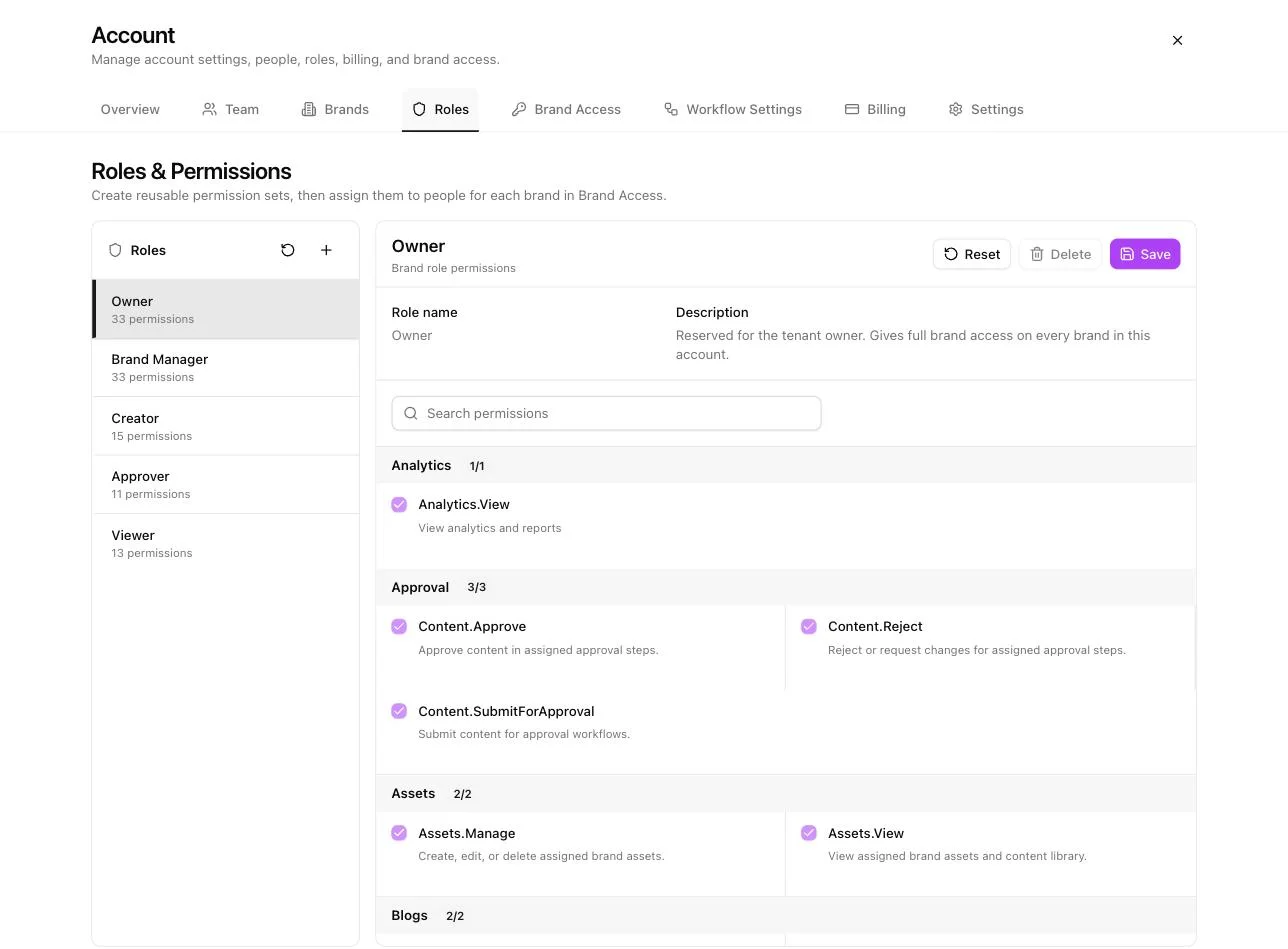
One thing to keep straight: Apaya’s roles are not Facebook Page roles. They are two separate systems. Making someone a Creator in Apaya gives them no standing on Facebook at all. It only lets them work inside your Apaya workspace, on the Page you connected. Your Facebook admin list stays exactly as it was, which is the point.
Why delegate through Apaya instead of a Facebook role
Here is the frame. A scheduler like Hootsuite or Buffer organizes content you still have to make. Apaya does what those schedulers do and adds a content production layer on top: from one plain brief it writes the posts, builds carousels, cuts reels, and drafts stories, then schedules them. That combination changes the delegation math.
- You hand off the work without handing over the keys. No Facebook admin seat, no shared password, no chance an outside party can lock you out or delete the Page.
- Off-boarding is one click. When an employee quits or you drop an agency, you remove them in Apaya and their access is gone. You never open Facebook settings, never reset a password, never wonder whether they saved your login.
- The owner stays in control. With approval required, a Creator can draft a full week, but nothing reaches your Page until you sign off. You delegate the effort, not the final say.
- The posting keeps happening. The reason consistency dies is that the person making the content gets busy. When the content is produced for you and only waits on approval, the calendar keeps moving even on your worst week. That is the time you get back.
If your next step is turning this into a repeatable system, the full walkthrough of how to automate Facebook posts shows the brief-to-published flow end to end. Running Pages for other people instead of yourself? See automating Facebook posts for agency clients, and if you are weighing a person for this work, the breakdown of a social media virtual assistant’s tasks and costs compares that route against automation before you sign a retainer. Pricing for all of it is on the plans page.
Frequently asked questions
How do I add an admin to my Facebook Page?
Open your Page, go to Settings, then Page access. Under People with Facebook access, click Add New, search for the person, choose Full control or Partial control, and click Give Access. Confirm with your password. They receive an invitation, and the access takes effect once they accept it. You need full control of the Page yourself to add anyone.
What is the difference between full control and partial control on a Facebook Page?
Full control can do everything you can, including managing other people’s access, removing admins, and deleting the Page. Partial control can run the Page day to day, post, reply, and see insights, but cannot remove you or delete the Page. Give full control only to a co-owner you trust completely. Give employees, VAs, and agencies partial control.
How do I remove an admin from my Facebook Page?
Go to Settings, then Page access, and select People with Facebook access. Click the person you want to remove, choose Remove access, and confirm with your password. Their access ends right away. Facebook adds a short waiting period before a newly added full-control person can remove other full-control admins, so the safest setup is to never hand out full control in the first place.
Why can’t I add an admin to my Facebook Page?
The usual reasons: you need full control of the Page yourself to grant access, the person needs a Facebook account and has to be findable by the email on that account, and they have to accept the invitation before the role shows up. If you manage the Page through a Business portfolio, you add people in Business settings, not on the Page.
Can someone post to my Facebook Page without being an admin?
Yes. Give them partial control, which lets them post without the power to remove you or delete the Page. Or skip Facebook roles and use a tool like Apaya: you connect the Page once as its admin, add the person as an Apaya user, and they draft and schedule posts that publish only after you approve them. When they leave, you remove them in Apaya without touching Facebook.
Related guides
- How to create a Facebook business Page: start here if you do not have a Page yet, since the creator becomes the first admin.
- How to unpublish a Facebook Page: another Page-control task worth knowing before you hand out access.
- How to automate Facebook posts: the full brief-to-published workflow once the delegation is set.
- Automating Facebook posts for agency clients: the multi-client version for anyone running Pages for other businesses.
Sources
- Meta Business Help Center, Page access and the New Pages Experience, verified in-product July 2026
- Apaya product screenshots captured live from my.apaya.com, July 2026
The easiest way to keep your social media profiles active.
Apaya writes the posts, designs the graphics, and publishes them for you. You approve.
See how Apaya worksThe easiest way to keep your social media profiles active.
Apaya writes your posts, designs your graphics, and publishes everywhere — automatically.