How to Unpublish a Facebook Page: Deactivate, Hide, or Delete
Written by: Tim Eisenhauer
Last updated:

The easiest way to keep your social media profiles active.
Learn more about Apaya →
How do you unpublish a Facebook Page?
To unpublish a Facebook Page, you hide it from the public while keeping the Page and everything on it, visible only to you and other admins. On older Pages, that control is the Unpublish Page toggle in Settings. On Pages that moved to the New Pages Experience, the Unpublish toggle is gone, and the same result now lives under a different name: Deactivate Page, found under Settings, Privacy, Facebook Page visibility. Both are reversible, so you can republish or reactivate later. Deleting is the permanent version, and there is no way to make a Page private, because Pages are public by design.
The short version
Most people reach for the unpublish button because they cannot keep up with the Page, not because they want it gone. Apaya keeps a Page alive on a small, steady cadence: it learns your business, writes and designs the posts, and publishes on your approval, so hiding the Page stops being the only way to stop the work. From $55/mo. The unpublish, deactivate, and delete steps come first, below.
Unpublish, deactivate, and delete: what each one does
Three different buttons get lumped together, and picking the wrong one is how people delete a Page they meant to pause. Here is the map.
| Action | What it does | Can you undo it |
|---|---|---|
| Unpublish (older Pages) | Hides the Page from everyone but admins; all content stays | Yes, republish anytime |
| Deactivate (New Pages Experience) | Same as unpublish, renamed; hides the Page, keeps content | Yes, reactivate anytime |
| Delete | Removes the Page and its content | Only within 14 days, then permanent |
| Make private | Not a setting. Pages are public; deactivate is the closest option | Not applicable |
The one that matters for most people searching this is the first two. Unpublish and Deactivate are the same job under two names, and which word you see depends only on whether your Page has been migrated yet.
How to unpublish a Facebook Page (older Pages)
If your Page still shows the classic Settings layout:
- Go to your Page and open Settings (Settings and privacy, then Settings).
- Open General, then find Page Visibility.
- Switch it from Page published to Page unpublished.
- Save. The Page drops out of public view right away. You and your admins still see and manage it.
That is the toggle everyone remembers. If you do not see a Page Visibility line, your Page is on the newer setup, and the next section is yours.
How to deactivate a Facebook Page (New Pages Experience)
Meta moved most Pages onto the New Pages Experience and swapped the Unpublish toggle for Deactivate. The path:
- From the Page, open Settings.
- Open Privacy, then Facebook Page visibility.
- Choose Deactivate Facebook Page and confirm, usually with your password.
- The Page is hidden from everyone but its admins, the same outcome as unpublishing.
Meta reshuffles these menus often, so treat the destination as the target: you are looking for the Facebook Page visibility control, wherever the current menu puts it. Deactivate there does what Unpublish did.
How to delete a Facebook Page
Deleting is the permanent one, so slow down before you pick it.
- Open Settings, then Privacy, then Facebook Page visibility (New Pages Experience), or Settings, then General on older Pages.
- Choose Delete Page and confirm.
- Facebook holds the Page for 14 days before removal is final. During that window you can cancel the deletion from the same screen and the Page returns untouched. After 14 days, it is gone for good, along with the posts, reviews, and followers.
If the reason you want to delete is a rebrand, you rarely need to. Renaming the Page keeps the followers, reviews, and history and swaps only the name, which is almost always the better move than starting from zero.
How to republish or reactivate a Facebook Page
Everything above except a completed delete is reversible:
- Republish (older Pages): return to General, Page Visibility, and flip it back to Page published.
- Reactivate (New Pages Experience): return to Facebook Page visibility and choose Reactivate.
- Cancel a pending deletion: go back to the delete screen within the 14-day window and cancel. The Page comes back as it was.
Why the Unpublish option is missing
This is the exact snag behind the older forum threads where someone insists they cannot unpublish their business Page. The Unpublish toggle was not taken away; it was renamed to Deactivate when the Page moved to the New Pages Experience. If Unpublish is not where you remember it, do not keep hunting for that word. Open Settings, Privacy, Facebook Page visibility, and use Deactivate. Same control, current label.
Can you make a Facebook Page private or hidden?
No, and this trips up a lot of people. A Page has no members-only or friends-only mode. Public visibility is the entire point of a Page, and there is no setting that keeps it live but limits it to followers. The closest thing to private is to unpublish or deactivate, which hides the Page from everyone but its admins. If your real goal is a space only certain people can see, a Page is the wrong container. A private Group is the tool built for that.
What going dark costs you
Say you deactivate. Here is what happens while the Page is down:
- The Page stops showing up in Facebook search and in the local results that pull from it.
- Your reviews and star rating go out of public view.
- Your follower count and follower list are hidden.
- Ad history and any pixel data tied to the Page can be affected.
All of it comes back when you reactivate. The catch is the meantime. A customer who searches your business name during the dark stretch finds nothing, or finds a competitor sitting where you used to be. That is the real cost of unpublishing, and it is why the reason behind it matters.
If the business is closed or the brand is retired, take the Page down without a second thought. But if the reason is that you fell behind and the feed got stale, hiding the Page treats the symptom. The problem was never that the Page existed. The problem was that keeping it fed turned into a job nobody had time for. That is a fixable problem, and it does not require pulling the Page out of search to solve.
The same job in Apaya: keep the Page alive instead of hiding it
To be clear up front: Apaya does not unpublish or deactivate Pages. That control stays in Facebook’s settings, where it belongs. What Apaya removes is the reason most people press it in the first place.
Here is where the categories differ. A scheduler like Hootsuite or Buffer organizes posts you still have to make. Apaya does that same publishing job, running a Facebook automation platform that posts on a schedule, plus a content production layer the schedulers leave to you: it makes the posts, carousels, reels, and stories from one brief. That difference is the whole reason a Page can stay on a cadence without eating your week. This is the flow, captured live from a real account.
1. Connect the Facebook Page. You have to be an admin of the Page to connect it, the same permission Facebook requires for any publishing tool. That admin role is set on Facebook, not in Apaya. The two are separate systems, and Apaya cannot grant Facebook access. If you are not an admin yet, whoever owns the Page has to add you as an admin first.
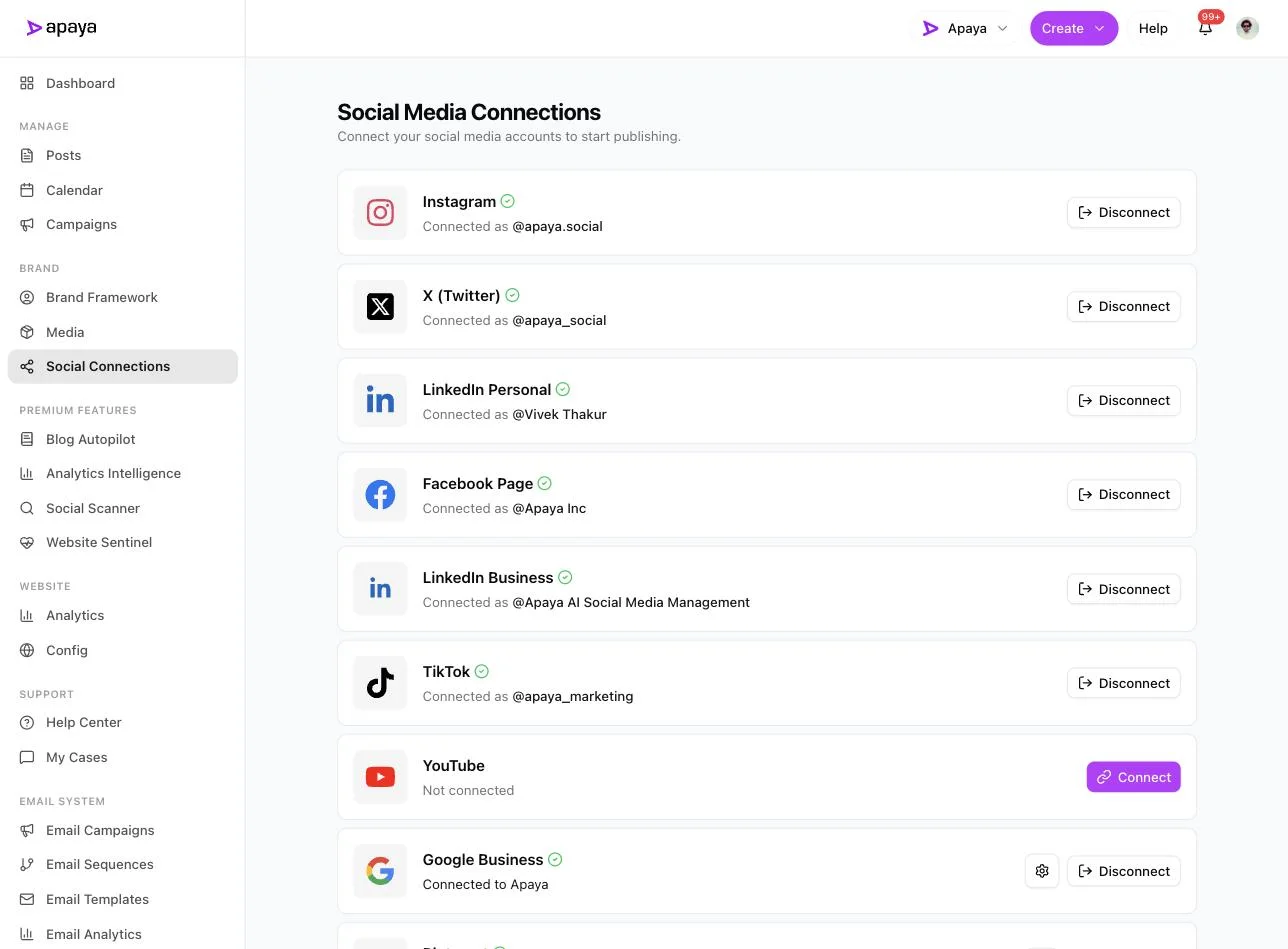
Apaya’s Social Media Connections screen. The Facebook Page shows a green check next to Instagram, X, LinkedIn, TikTok, and Google Business. Each connection needs admin access on that account before it will link.
2. Let it learn the business and draft the posts. This is the layer a scheduler does not have. From Create, you tell it what to post about in plain language, or point it at your website, and it writes the captions in your brand voice and designs the graphics. The same menu builds posts, carousels, reels, and stories from a single brief.
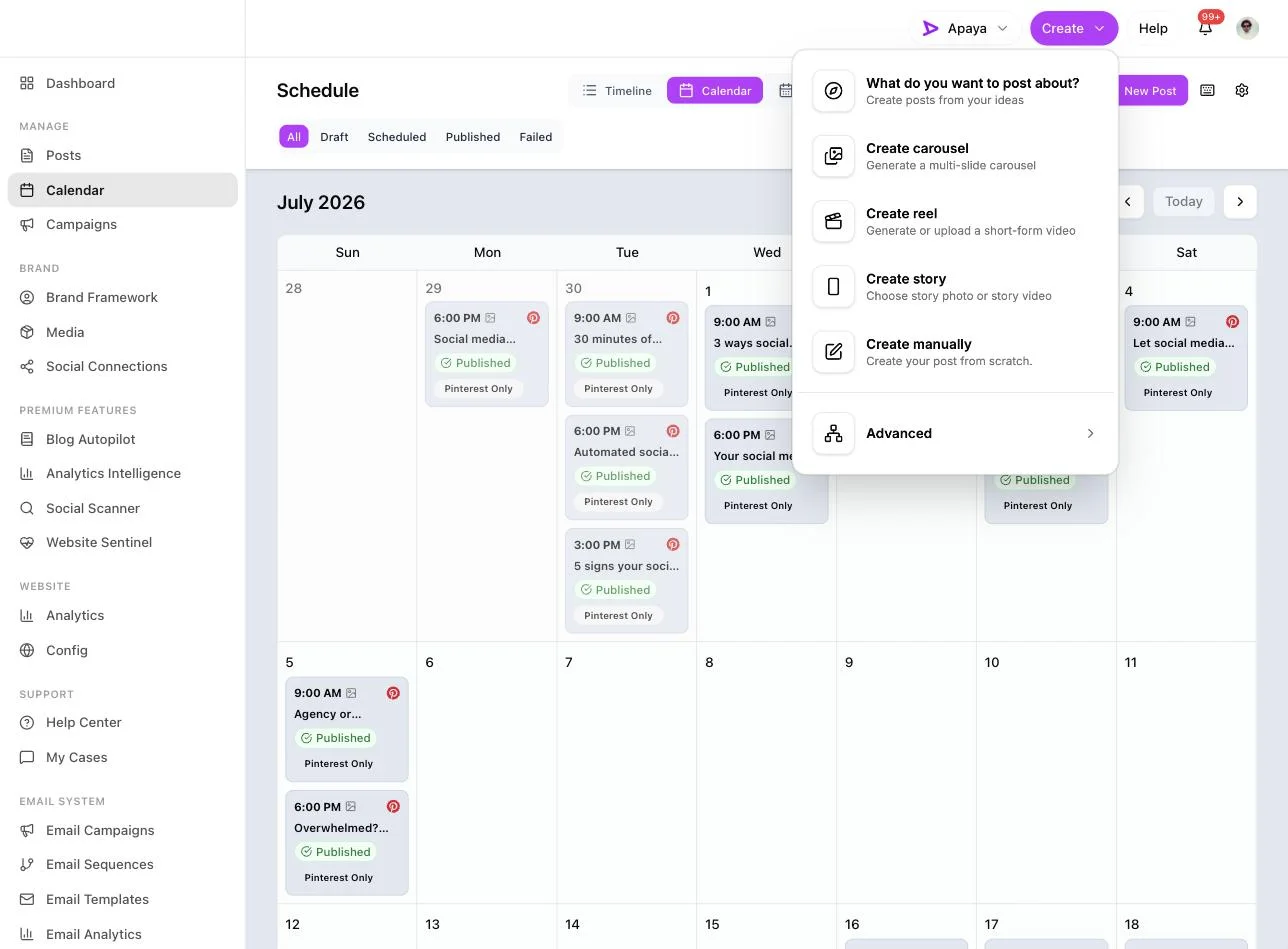
The Create menu, with options to generate a carousel, a reel, a story, or a standard post from one brief. This is the production step a scheduler hands back to you.
3. Review and approve. Nothing publishes until you say so. The drafts come back with finished captions and designs, and you keep, edit, or discard each one before it reaches the calendar.
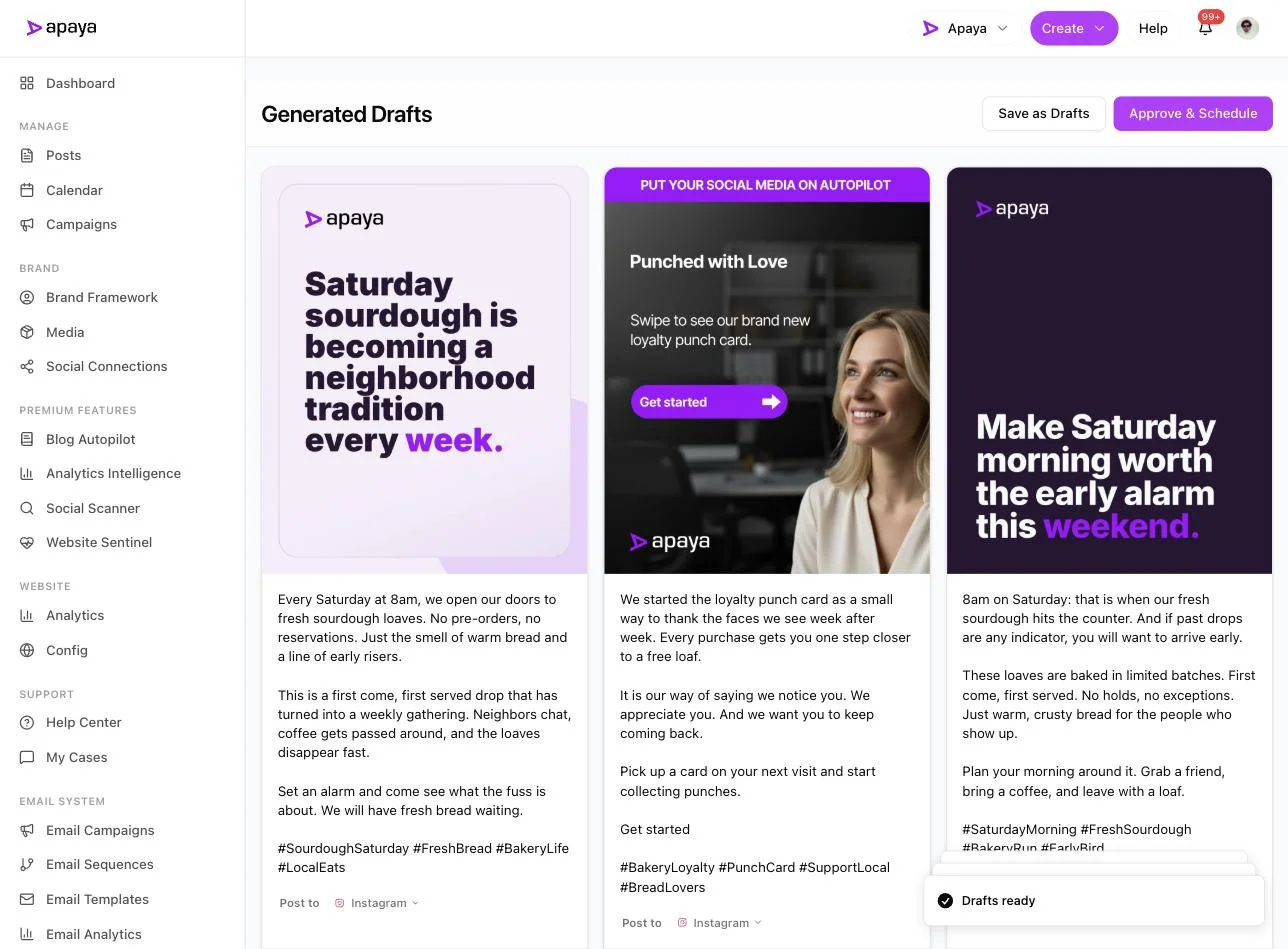
A set of generated drafts, each with its own caption and designed graphic and an Approve and Schedule button. The badges here read Post to Instagram; you choose the platform when you write the brief, and a connected Facebook Page is one of the options.
4. It runs on a cadence, and the Page stays live. Once posts are approved and scheduled, publishing happens on its own. You are back to reviewing a queue for a few minutes a week instead of staring at a blank Page wondering what to post.
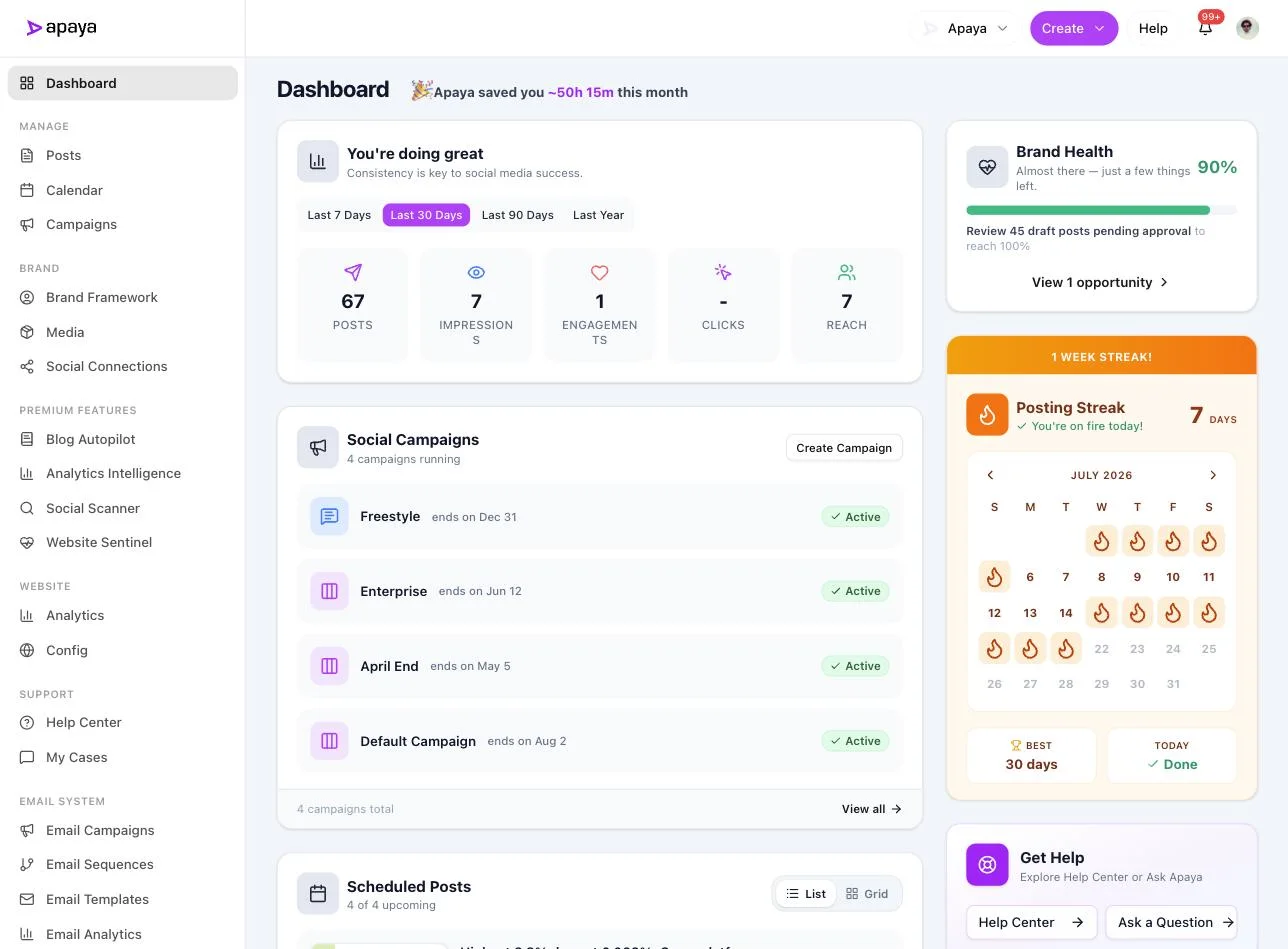
The Apaya dashboard, showing about 50 hours saved this month, a 7-day posting streak, brand health at 90 percent, and scheduled posts lined up. The Page keeps publishing without a person doing it by hand.
Why a small cadence beats going dark
Two to three posts a week is the cadence to aim for, the same target a Page kept by hand should hit. The point of automating it is not more of anything. It is keeping the thing running without the workload that made you want to quit. Framed on what you get back:
-
The Page stays findable instead of vanishing. Deactivating pulls the Page out of search and hides your reviews. A steady two to three posts a week keeps it in place, so a customer looking up your business name still lands on you rather than a gap.
-
You stop the feast-and-famine cycle. Pages go dark because of the burst-then-silence pattern: ten posts one week, nothing for two months, then the guilt spiral that ends at the unpublish button. A queue you approve in minutes replaces that with a flat, boring, dependable cadence.
-
It takes less of your time than the posting you were avoiding. The dashboard above logs the hours it lifts off your plate. You review and approve; the writing, designing, and publishing are handled. Reviewing a week’s queue runs about 15 to 20 minutes.
-
You keep what the Page already earned. Followers, reviews, and history stay live and in public view, instead of blinking out the moment you deactivate.
For the full breakdown of every way to keep a Page publishing, the guide to automating Facebook posts covers free scheduling, third-party tools, and full automation side by side, and AI Facebook marketing automation covers keeping the Page active daily. If you have decided to keep the Page and the wall you keep hitting is what to say, our Facebook post ideas list is built to be fed straight into a brief.
Which move fits your Page
- Closed business or retired brand: delete it, or deactivate if there is any chance you revive it.
- Rebrand: rename the Page, do not delete it, and keep the followers and reviews.
- Behind on posting and tempted to hide it: keep it up and put it on a cadence. The Page was never the problem.
What people ask about unpublishing a Facebook Page
Is unpublishing a Facebook Page the same as deleting it?
No. Unpublishing, and its renamed version Deactivate, hides the Page from the public while keeping the Page, its posts, reviews, and followers intact. You can bring it back anytime. Deleting removes the Page and its content, with a 14-day window to cancel before it becomes permanent. Unpublish is a pause, delete is a teardown.
Why is there no Unpublish option on my Facebook Page?
Because your Page moved to the New Pages Experience, where Meta replaced the Unpublish Page toggle with Deactivate Page. It lives under Settings, then Privacy, then Facebook Page visibility. Same result, different name and location. If you cannot find Unpublish, you are looking for a control that was renamed, not doing anything wrong.
Can I make my Facebook Page private so only I can see it?
No. Pages are public by design, which is the difference between a Page and a personal profile. There is no members-only or friends-only mode for a Page. The closest option is to unpublish or deactivate, which hides the Page from everyone except its admins. If you need a space only certain people can see, a private Group is the tool built for that.
What happens to my reviews, followers, and search listing when I unpublish?
They are hidden while the Page is down, not deleted, unless you delete the Page outright. The Page stops appearing in Facebook search and its reviews, star rating, and follower list go out of public view. Republish or reactivate and all of it comes back in place. The tradeoff is that while the Page is dark, someone searching your business name finds nothing.
What is the alternative to unpublishing a Page I cannot keep up with?
Put it on a small, steady cadence instead of hiding it. Two to three posts a week keeps the Page findable without the weekly scramble. Apaya writes and designs the posts from one brief, schedules them, and publishes on your approval, so keeping the Page alive stops depending on you finding time to make content. You have to be a Page admin to connect it.
Related guides
- How to automate Facebook posts: every method, free scheduling through full automation, with screenshots.
- AI Facebook marketing automation: keeping a Page active daily without the manual grind.
- Facebook post ideas: 45 prompts and a 30-day calendar for a Page you have decided to keep.
- How to change a Facebook Page name: the rebrand move that beats deleting and starting over.
- How to add an admin to a Facebook Page: the access you need before connecting a Page to any tool.
Sources
- Meta Help Center and Meta Business Help Center documentation on unpublishing, deactivating, republishing, and deleting a Page, verified in-product July 2026
- Apaya product screenshots captured live from my.apaya.com, July 2026
The easiest way to keep your social media profiles active.
Apaya writes the posts, designs the graphics, and publishes them for you. You approve.
See how Apaya worksThe easiest way to keep your social media profiles active.
Apaya writes your posts, designs your graphics, and publishes everywhere — automatically.