How to Change Your Facebook Page Name: 2026 Steps and Rules
Written by: Tim Eisenhauer
Last updated:

The easiest way to keep your social media profiles active.
Learn more about Apaya →
How do you change a Facebook Page name?
To change a Facebook Page name, open your Page, go to About or Page info, click Edit next to the Name field, type the new name, and submit it for review. Only Meta can rename a Page, and only an admin with full control can request the change. No third-party tool, Apaya included, can rename a Page for you. Facebook checks the request against its naming rules, and the new name goes live once approved, anywhere from a few minutes to about three days later.
That is the four-tap version every other guide stops at. The problem is who is usually asking. It is rarely someone renaming for fun. It is a business owner mid-rebrand, and the rename is the easy part. The hard part is every place the old name still lives after Meta approves the new one.
After the rename
Meta changes the name on the Page. Everything else still shows the old one. Apaya is where you re-teach your brand once, and every new post, carousel, and reel it writes and designs carries the new name across Facebook, Instagram, LinkedIn, and X. From $55/mo. The rebrand walkthrough is below the native steps.
Change your Facebook Page name on desktop (New Pages Experience)
Most Pages run on the New Pages Experience now, so start here. You need admin access with full control. An Editor cannot rename the Page.
- Go to facebook.com and switch into your Page. Click your profile photo at the top right, then select your Page so you are using Facebook as the Page.
- Open your Page and find the About or Page info section, where your name, category, and bio live. On the New Pages Experience this sits under your Page’s profile.
- Click Edit next to the Name field.
- Type the new Page name.
- Click Review, read the confirmation, and submit the request.
Facebook then reviews the name. Some changes clear in a few minutes. Others sit in review for up to about three days. Your followers, posts, photos, and reviews all stay put. Renaming does not reset the Page or start it over.
Change your Facebook Page name in Meta Business Suite
If you run the Page from Meta Business Suite, you can rename it there without touching the Page’s public view.
- Go to business.facebook.com and pick the Page from the account dropdown at the top left.
- Open Settings from the left menu.
- Find your Page’s information, listed under Page settings or Page info.
- Click Edit next to Name, type the new name, and save.
- Confirm to send it for review.
Same review, same timing. Business Suite is the better spot for this if you manage several Pages, because you rename from the same dashboard you post from.
Change your Facebook Page name in the mobile app
On iPhone or Android, in the Facebook app:
- Tap your menu, go to Pages, and switch into your Page.
- Tap your Page’s profile photo to open its profile, then tap Edit or the About section.
- Tap the Name field and enter the new name.
- Tap Review, then submit.
The mobile flow runs through the same approval as desktop. Whichever surface you use, you are asking Meta to approve one change, not making it yourself.
Why Facebook rejects Page name changes
This is where the four-tap guides leave people stranded. A rename can come back denied, and Meta rarely tells you which rule you tripped. The name policy, in plain terms, blocks:
- Words that are not part of your real name: descriptions like “best,” “official,” or “free,” or generic category words such as “cheap flights,” unless they are part of the registered brand.
- Bad capitalization and symbols: ALL CAPS, random capitalization, or extra symbols and punctuation.
- Names that change what the Page is: a bakery Page renamed to a plumbing company reads as repurposing an audience, which review tends to reject.
- Trademarks you do not hold and misleading affiliations: implying you are an official brand or partner you are not.
If your new name is a normal business name and it still bounces, the usual cause is one of those, most often a stray descriptor or capitalization. Trim it to the plain legal or brand name and resubmit.
The review delay and the “unable to make additional requests” error
Two things trip businesses up here.
First, the delay. A name change is a request, not an instant edit. Budget up to about three days, and do not schedule the announcement until the name is live.
Second, the block. If you see “you are unable to make additional requests at this time,” Facebook has limited how often you can change this Page’s name. It shows up when you have renamed recently or submitted the same request over and over. There is no button to skip it. Wait it out, often a week or more, confirm you have full-control admin access, make sure the name follows the rules above, then request once and leave it alone. Hammering the button resets the clock against you.
Facebook Page name vs username and URL
These are three different things, and changing one does not change the others:
- Page name: the display name people see. That is everything above.
- Username: your @handle, which sets your vanity URL, facebook.com/yourname.
- URL: built from the username, not the name.
So renaming the Page leaves your old handle in the address bar. To match your URL to the new brand, change the username separately: open your Page’s About or profile, find Username, click Edit, and enter the new handle. Usernames need at least five characters, allow letters, numbers, and periods, and have to be unique. If the one you want is taken, that is the constraint, not a bug. Update the name and the username together during a rebrand so the two do not drift apart.
The same job in Apaya: rebrand once instead of post by post
Here is the part no native guide covers. Meta changing the name is maybe 2% of a rebrand. The other 98% is every caption, graphic, and bio that still says the old name across every platform.
This is the difference in what Apaya is. Schedulers like Hootsuite or Buffer organize content you still have to make. Apaya does that scheduling and adds the layer they do not: it writes and designs the content itself, posts, carousels, and reels, from one brief. So when the brand changes, you are not editing a queue by hand. You update the brand once and the production follows.
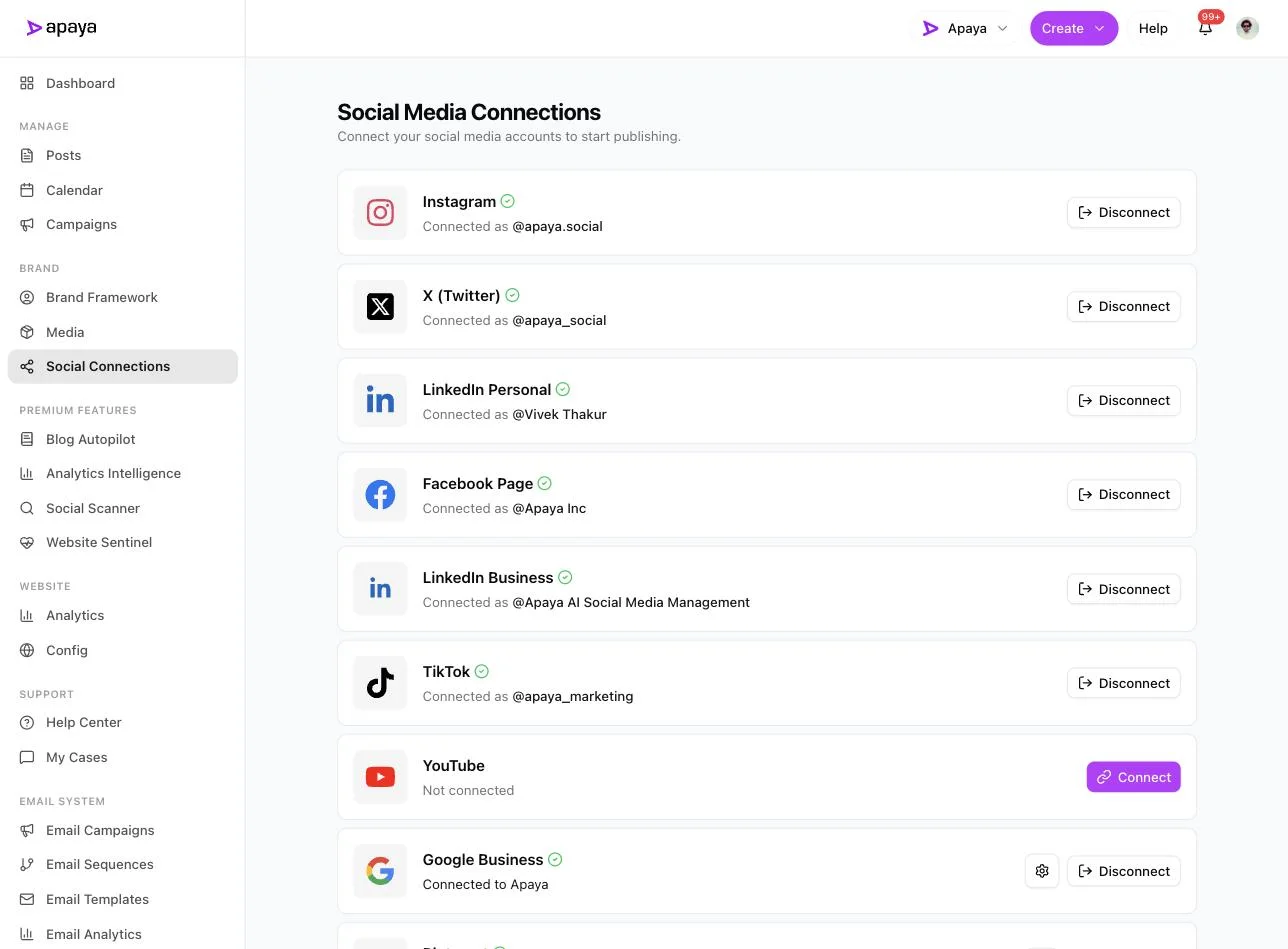
Step one is connecting the renamed Page. You do this as a Page admin. Only an admin can authorize the connection, the same full-control access you needed to rename the Page in the first place. (Apaya’s own roles are a separate system from Facebook’s Page roles. Do not confuse the two.)
With the Page connected and your brand details updated, Apaya generates on-brand content from a plain brief. You type what you want to post about, pick the platform, and it writes the captions and designs the graphics to match. Here is a set of three posts from one brief, each with its own template and caption:
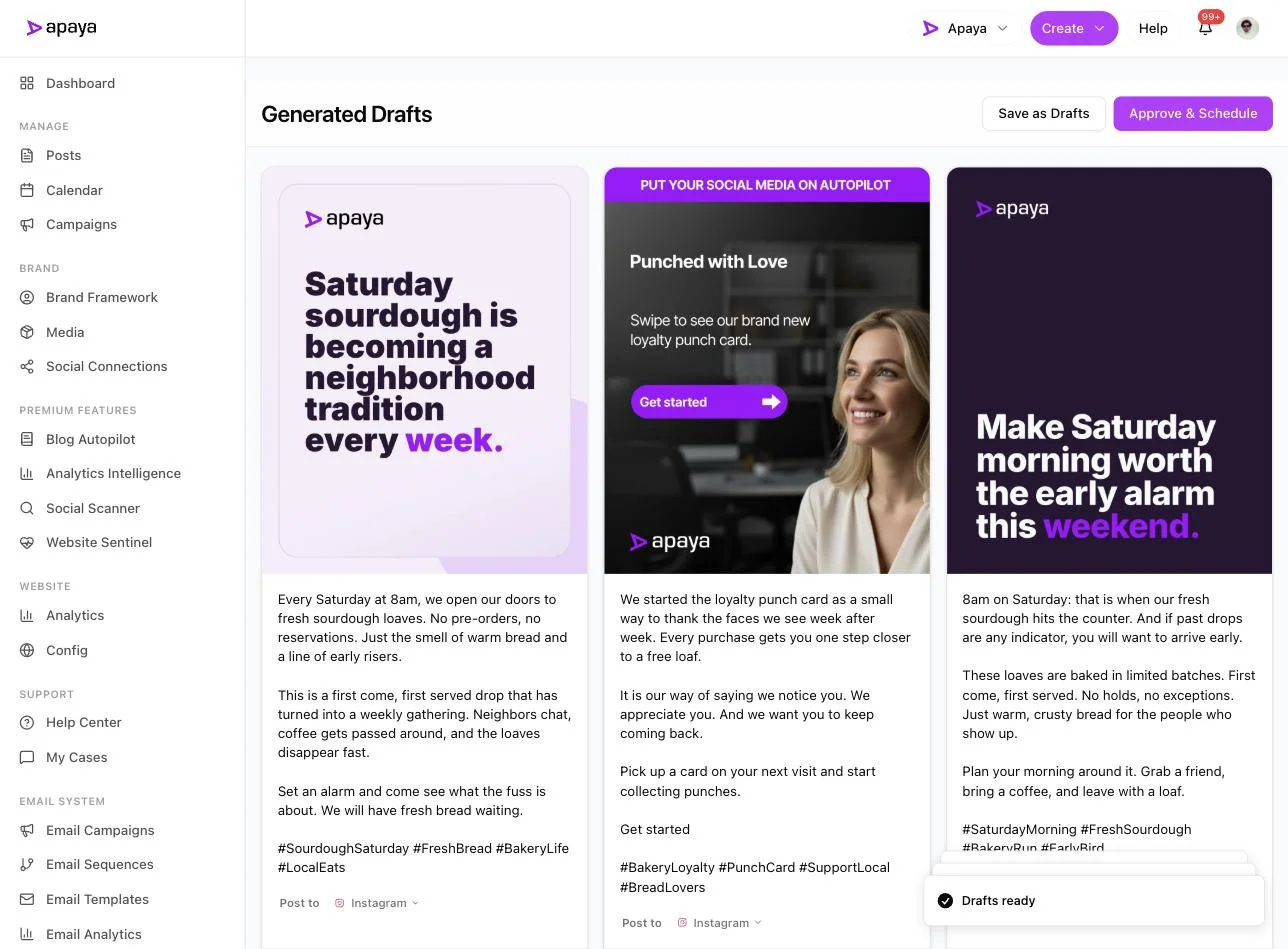
Because the design and copy are generated against your current brand, not pulled from a folder of old files, new posts carry the new name from the moment you flip it. That is the brand voice doing the work: re-teach it the new name, logo, colors, and tone once, and the next brief comes back on-brand.
Why re-teach the brand once instead of editing every post
Do a rebrand by hand and the list is long: rewrite every queued caption, regenerate every graphic that still shows the old logo, and redo every bio platform by platform. Miss one and a follower finds the old name three weeks later.
Look at how much content a working Page carries. This library holds 544 published posts and more in the queue. Every one of them was branded at creation.
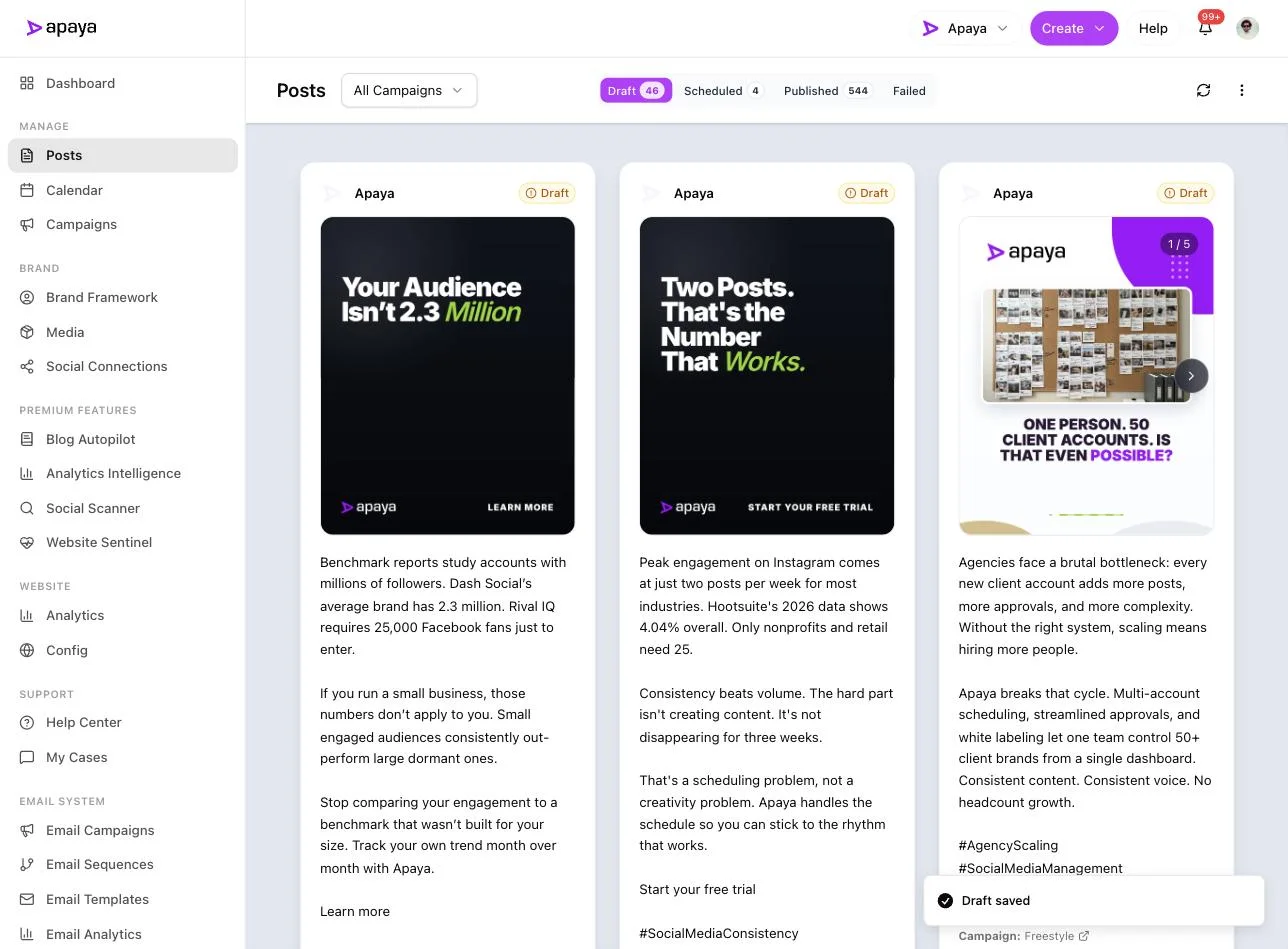
You are not going back to re-cut 544 old graphics. Nobody is. What matters for a rebrand is that everything from the switch forward is right, and that it is right without you touching each piece. That is the consistency argument and the time argument in one: the production layer already knows the brand, so keeping it consistent across platforms is a settings change, not a week of copy-paste.
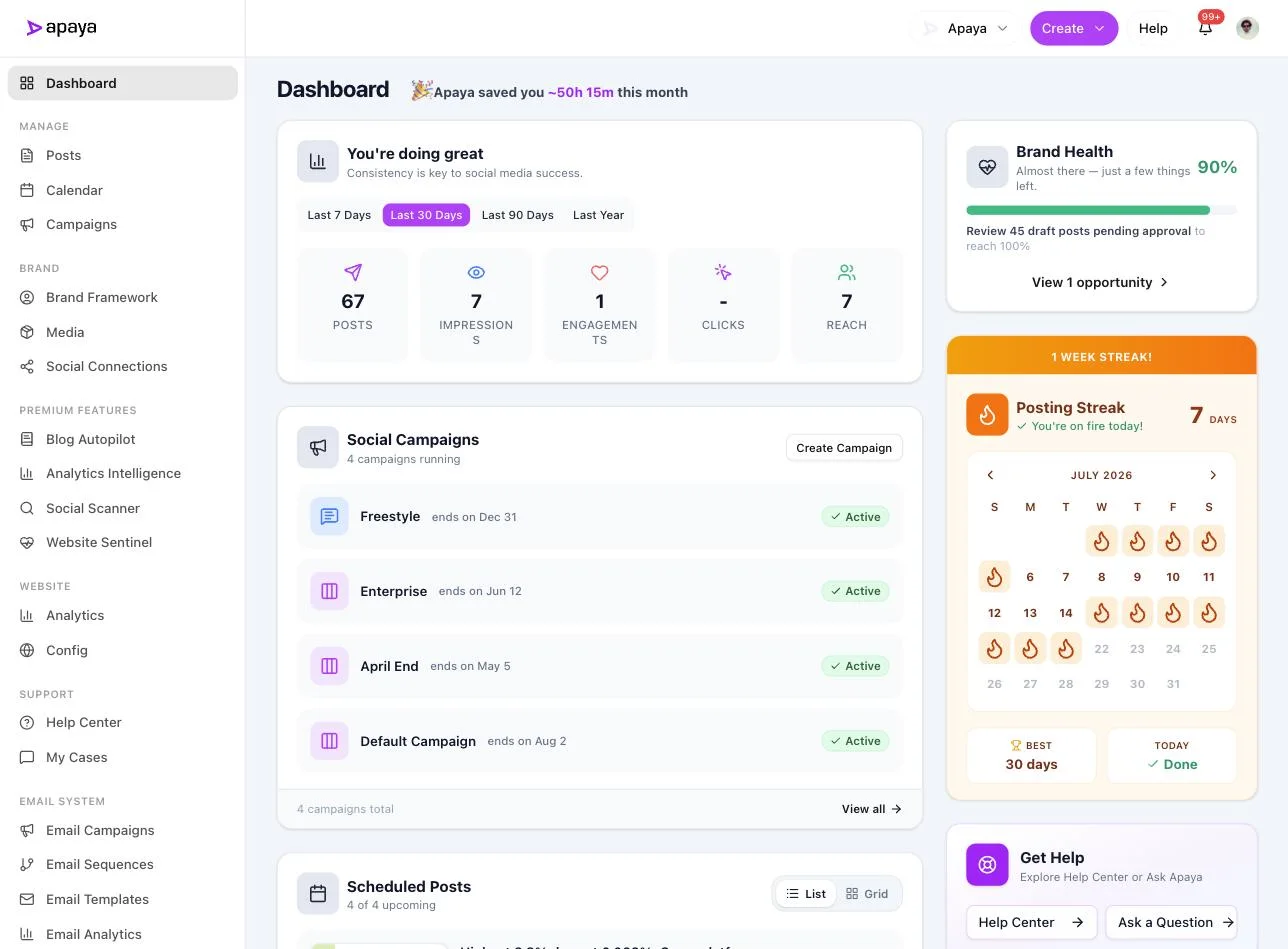
The time this frees is the point, not any promise about reach. Here is the dashboard view, with the hours saved and the brand-health read Apaya tracks:
If you are running more than one brand through a rebrand, the same re-teach-once logic is how people manage several brands without cloning the work per account.
The post-rename checklist: what else to update
Once Meta approves the new name, work down this list so nothing keeps flashing the old one:
- Username and URL on the Page, covered above.
- Profile and cover images, if the logo changed.
- The Page’s About, bio, and category text.
- Connected Instagram and any Facebook-to-Instagram cross-posting, so both read the same.
- Every other platform: X, LinkedIn, TikTok, your website, and email signatures.
- Scheduled and queued content, so nothing publishes under the old name after the switch. If your Facebook posting is automated or your posts are written by AI, this is where updating the brand once beats editing the queue post by post.
- Admins and access, a good moment to review who has admin control of the Page.
Frequently asked questions
How long does it take to change a Facebook Page name?
Anywhere from a few minutes to about three days. Facebook reviews every name change before it goes live. Some clear instantly, some sit in review, so do not announce the new name until it shows on the Page.
Why won’t Facebook let me change my Page name?
Usually one of three reasons: the name breaks Meta’s naming rules (extra descriptors, odd capitalization, symbols), you are not an admin with full control, or you have hit the change limit and see “you are unable to make additional requests at this time.” Fix the name, confirm your access, and if you are rate-limited, wait it out rather than resubmitting.
Does changing my Facebook Page name change my URL?
No. The name and the username, which sets your URL, are separate. Renaming the Page leaves the old handle in the address. Change the username separately in your Page settings to match the new brand.
Do I need to be an admin to change a Facebook Page name?
Yes. You need full-control admin access. Editors and other roles can post but cannot rename the Page. If you are not an admin, an existing admin has to make the change or grant you access first.
Will renaming my Page delete my followers or posts?
No. Your followers, likes, posts, photos, and reviews stay. A name change updates the display name only. It does not reset the Page or its history.
Related guides
- How to automate Facebook posts: the free and full-automation methods, with screenshots.
- AI Facebook post generator: how the posts get written and designed.
- AI Facebook marketing automation: keeping the Page fed after the rebrand.
- Social media brand consistency: making every platform read the same after a rename.
- How to add an admin to a Facebook Page: the access you need to rename in the first place.
Sources
- Meta Help Center Page name and username guidance, verified in-product July 2026.
- Apaya product screenshots captured live from my.apaya.com, July 2026.
The easiest way to keep your social media profiles active.
Apaya writes the posts, designs the graphics, and publishes them for you. You approve.
See how Apaya worksThe easiest way to keep your social media profiles active.
Apaya writes your posts, designs your graphics, and publishes everywhere — automatically.