How to Turn Your Website Into Social Media Posts
Written by: Tim Eisenhauer
Last updated:

The easiest way to keep your social media profiles active.
Learn more about Apaya →
How do you turn your website into social media posts?
Three ways, in rising order of automation: break pages into posts by hand using a repurposing checklist, paste your text into an AI chat tool and edit what comes back, or paste the page’s URL into a tool that reads it and returns finished posts, graphics included, for your approval. Your website is already the best content source you own, because every page on it answered a real customer question at some point. This guide covers all three methods, and shows the third one live with screenshots, from URL to reviewed drafts.
The one-step version
In Apaya, "turn my website into posts" is a menu option: paste a URL or point it at your site, and finished posts come back in your brand voice with designed graphics, from $55/mo. The walkthrough below shows it end to end.
Method 1: The manual repurposing system
Any substantial page breaks into eight to fifteen posts if you pull it apart along its natural seams:
- The core claim. Whatever the page argues in one sentence becomes the plain-text opinion post. Pages always argue something (“most free templates are lead magnets in disguise”), and stated alone, that argument reads as a take worth reacting to.
- Each subheading. Every section is a standalone tip post; five sections, five posts. The section already survived editing once, so the thinking is pre-tested; the social version is the same point with the wind-up removed.
- Every statistic. Each number becomes a quote-style graphic, because numbers stop scrollers where sentences don’t. Prices, timelines, counts, and percentages all qualify, including the ones that feel ordinary to you.
- The best sentence. One quote card per page, attributed to your business. If you can’t find the sentence, a reader’s favorite line from a review of that service works better anyway.
- The checklist. Any list on the page becomes a carousel or document post, the formats that get saved and shared. One list item per slide, the page’s title as the cover.
- The announcement. “We wrote the complete guide to X, here’s what it covers” is the plain promotional post, once per platform, the week the page ships. It is the only post in the batch whose job is the click.
Here’s the system run against a real page, our calendar template post, so the math isn’t hypothetical. Twelve posts fall out of it:
- Announcement for Facebook: free template, no signup, link.
- Announcement for LinkedIn: same news, professional framing, the no-email-gate angle.
- The core claim as a take: most “free templates” are onboarding flows wearing a template costume.
- Tip post from the tabs section: the eight columns a working calendar needs.
- Tip post from the format sections: how to import an .xlsx into Google Sheets without losing dropdowns.
- Tip post from the five-jobs section: rotate proof, faces, education, offers, community.
- Tip post from the one-sitting section: plan the month in one block, leave a fifth of slots open.
- Stat card: 50 starter ideas in the content bank.
- Stat card: the cadence numbers, three to five Instagram posts a week.
- Quote card: “A calendar template’s failure mode is becoming a beautifully formatted empty document.”
- Checklist carousel: the five-step method from the template’s start-here tab.
- Question post: what’s the one thing that stops you from planning a month ahead?
That’s two weeks of a content calendar from one URL. The cost is the same as always: writing, designing, and scheduling each piece by hand, which is why this system, taught by every marketing blog for a decade, mostly goes unexecuted after week two. The batching method makes it survivable; it doesn’t make it automatic.
Method 2: Paste into an AI chat tool
Copy the page text into ChatGPT or any chat AI and ask for platform-specific posts. This works, with three tolls you pay every time: the output sounds like the tool rather than your business until you rewrite it, the graphics don’t exist and are your problem, and nothing is scheduled, so the ten captions land in a document where content goes to wait. It’s a faster method 1, not a different method. The ranking pages for this search are mostly recipes for wiring this up with automation platforms, which replaces the copy-paste and keeps every other toll.
Method 3: Paste a URL, review finished posts
Here’s the same job in Apaya, captured live from our account.
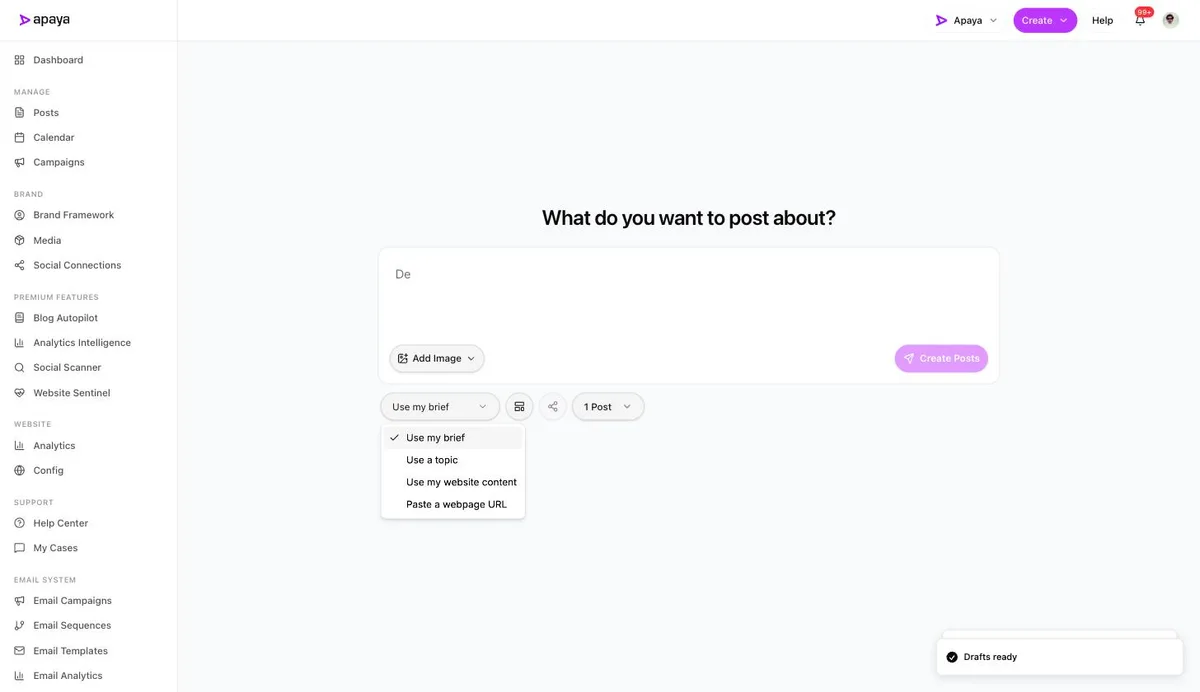
1. Choose your source. On the create screen, the source menu is the whole feature: write a brief, give it a topic, use your website content, or paste a webpage URL.
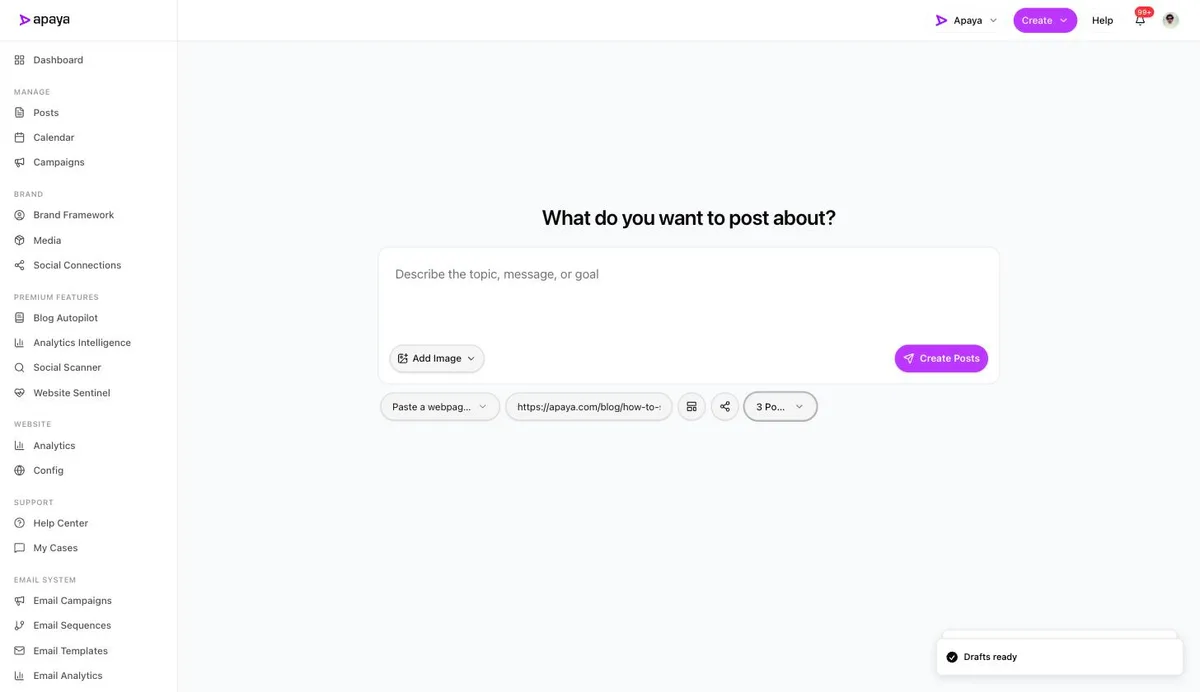
2. Paste the URL and set the run. We pasted one of our own guides, left every platform selected so each post gets adapted per platform, and asked for three posts.
3. Review what comes back. A minute later: three finished posts angled off the page’s topic, each with a caption in our voice and a designed graphic, each with keep, edit, or discard controls, and an Approve & Schedule button when you’re satisfied.
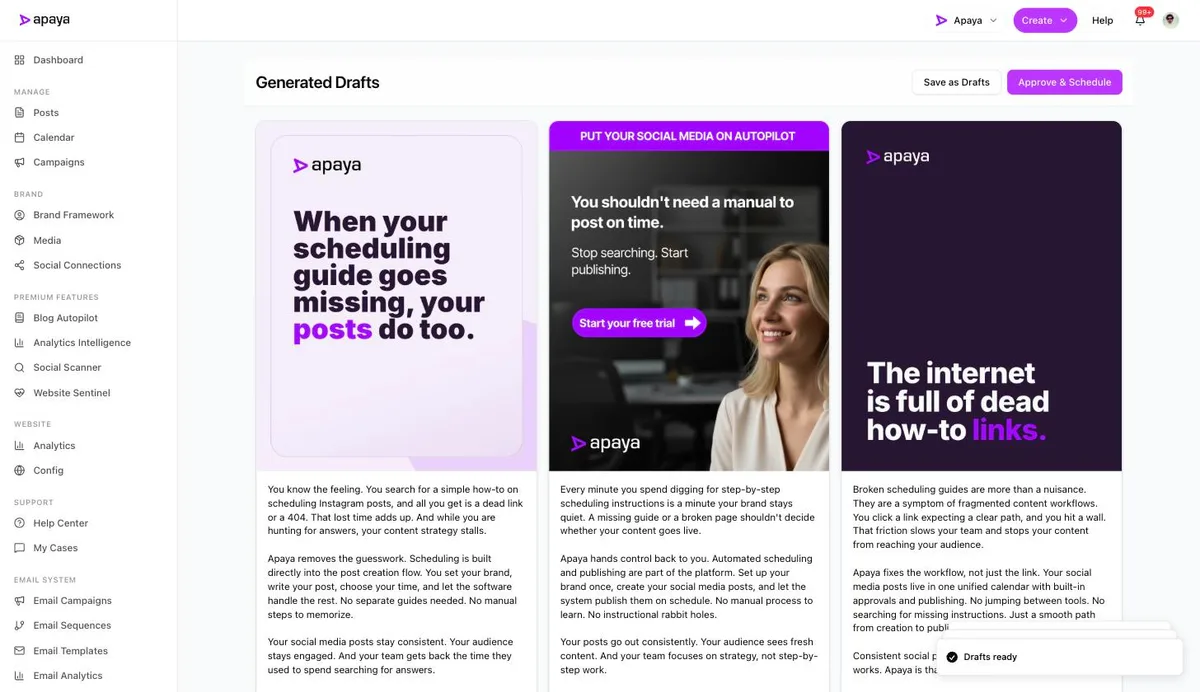
That’s the whole workflow: URL in, reviewed posts out, scheduling included. Two things worth knowing about the deeper version. First, the “use my website content” option in that menu skips even the pasting: Apaya crawls your site at setup and builds a brand framework from it, so every post it ever generates is drawing on your pages, your services, and your voice, not just the one URL you fed it today. Second, the announcement posts this flow produces are how our own guides get promoted; the what-to-post idea lists become briefs, and the calendar fills from material that already existed. Your website wrote your social media; something just had to carry it over.
Which pages to feed it first
Blog posts and guides first: each is a week of material. Then service pages, which yield the plain “yes, we do that, here’s what it costs” posts that businesses forget to publish and customers keep needing. Then reviews and customer stories, the proof posts that close checking customers. Then the FAQ page, where every question is already a post, and the about page, whose founder story is the single highest-performing post type a small business has.
What else people ask
What if my website is small, a few pages?
A few pages is enough. A five-page site for a service business holds the what-we-do posts, the pricing explainer, the founder story, the service-area post, and whatever the FAQ answers, which is a month of material before anything new gets written. Repurposing is about density, not volume.
Should the posts link back to my website?
Announcement and guide-promotion posts, yes. Tip and quote posts extracted from a page work better standing alone; platforms reward posts that keep people on-platform, and the goal of extracted posts is presence, not clicks. Mix both and let the analytics tell you what your audience does with each.
How often can I reuse the same page?
Quarterly, reshaped, indefinitely. The audience that sees this quarter’s version mostly didn’t see last quarter’s, the platform treats each post as new, and evergreen pages are evergreen precisely because the answer keeps being needed. The 45-idea lists in our Facebook and Instagram guides include the repurposing shapes for exactly this reason.
Does this replace writing new social content?
It replaces the scramble, not the fresh material. The strongest feeds run repurposed evergreen as the baseline and leave slots open for the timely posts only a human knows about: the job finished today, the local moment, the real photo. Automate the baseline, keep the life.
Your website already did the hard part
Every page on your site is a customer question you answered well enough to publish. Turning those answers into a living feed is mechanical work, and mechanical work is what has a software price now. Paste one URL and look at what comes back; the gap between your website and your social media was never a writing problem, it was a carrying problem.
Sources
- SERP format review, July 2026: Make’s ChatGPT workflow guide, Planable’s repurposing tool page, and the one-post-into-twenty strategy articles (cited unlinked)
- Apaya product screenshots captured live from my.apaya.com, July 2026
The easiest way to keep your social media profiles active.
Apaya writes the posts, designs the graphics, and publishes them for you. You approve.
See how Apaya worksThe easiest way to keep your social media profiles active.
Apaya writes your posts, designs your graphics, and publishes everywhere — automatically.